AI Voice — Click2Call Integration Guide
Your CRM now includes AI-powered voice calling. Run AI phone campaigns, auto-capture leads from conversations, and manage voice assistants — all from within Click2Call.
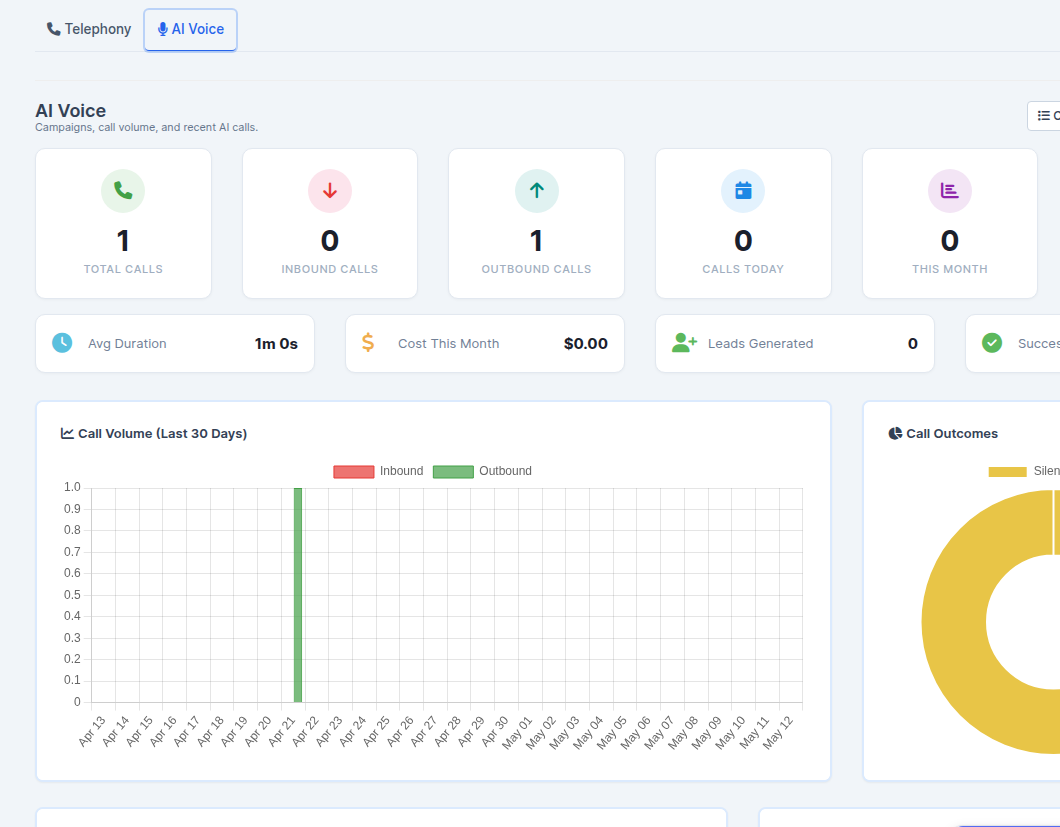
AI Voice Dashboard
What was added:
- The Click2Call Dashboard now features two tabs: Telephony (existing click-to-call statistics) and AI Voice (AI call metrics, recent AI calls, and active campaign status).
- The AI Voice tab gives you an at-a-glance view of total AI calls, success rates, active campaigns, and leads created from AI conversations.
- Navigation: Click2Call > Dashboard (select the AI Voice tab at the top).
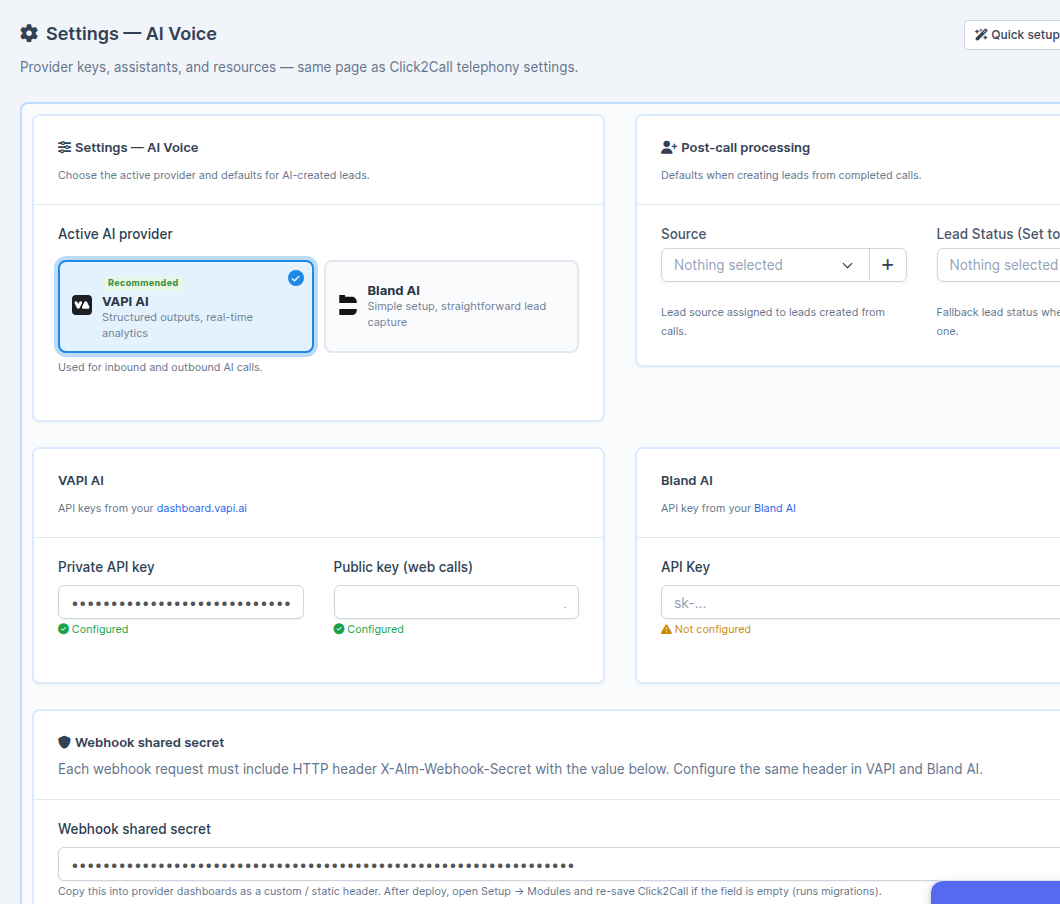
AI Voice Settings & Provider Configuration
What was added:
- A unified settings page lets you choose between two AI voice providers: VAPI AI and Bland AI.
- The Settings / API tab is where you select your active provider, enter your API keys, and configure post-call defaults such as lead source and lead status for automatically created leads.
- The VAPI AI tab lets you create and manage AI assistants — configure voice, language model, system prompt, knowledge bases, and phone numbers for both inbound and outbound calls. You can also set up structured output so the AI captures specific lead information during calls.
- The Bland AI tab lets you manage Bland AI outbound agents, phone numbers, and voice settings.
- Navigation: Click2Call > Settings (then select Settings / API, VAPI AI, or Bland AI tabs at the bottom of the page).
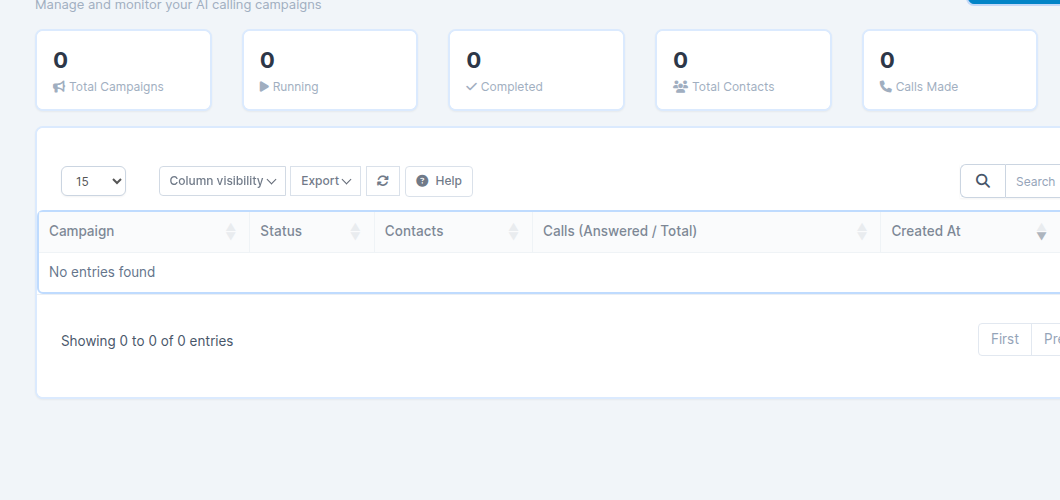
AI Voice Campaigns
What was added:
- You can now run bulk outbound AI calling campaigns directly from the CRM.
- Upload a CSV file with phone numbers, assign an AI assistant, and set maximum retry attempts per number.
- Campaigns process calls automatically via a scheduled task — no manual intervention needed after launch.
- Track each number’s status in real time: pending, in-progress, completed, failed, or skipped.
- View campaign progress, individual call logs, and AI evaluation results from a single dashboard.
- Navigation: Click2Call > Campaigns (sidebar item under Click2Call).
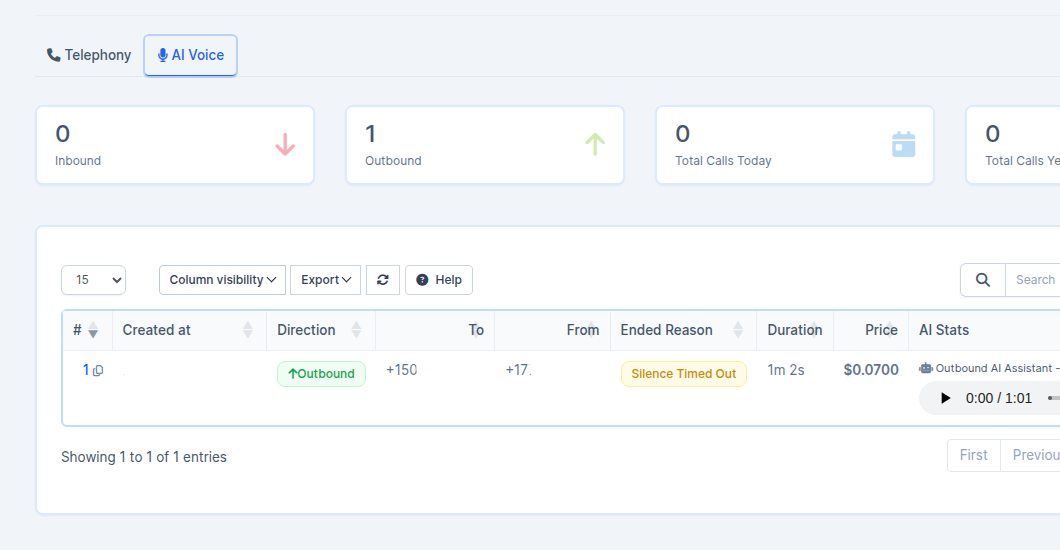
AI Call Logs & Automatic Lead Capture
What was added:
- AI call logs are now integrated into the existing Call Logs page with a dedicated AI tab, showing provider, call duration, status, and direct links to any leads created from the call.
- When an AI call completes, the system automatically extracts structured data from the conversation — name, email, phone, address, city, state, country, zip, and description — and creates a new CRM lead with the information captured.
- The lead source and default status are set according to the values you configured in AI Voice Settings.
- Navigation: Click2Call > Call Logs (select the AI tab).
Quick Setup Wizard
What was added:
- A guided setup wizard helps first-time users configure their AI voice provider step by step.
- The wizard walks you through selecting a provider, entering API credentials, creating your first AI assistant, and making a test call.
- If no AI provider keys are configured yet, the system redirects you to the wizard automatically when you open the Click2Call Dashboard.
- You can also launch the wizard manually from Click2Call > Settings (the Quick Setup button appears above the AI Voice tabs) or from Click2Call > Call Logs (when setup is not yet complete).
Security & Webhook Processing
What was added:
- Webhook endpoints for both VAPI AI and Bland AI are secured with shared secrets — only requests with a valid X-Alm-Webhook-Secret header are accepted.
- All AI Voice admin pages require proper staff permissions; users without the correct role cannot access settings, campaigns, or call logs.
- API keys are stored server-side only; the browser never sees private keys (only the public key is exposed for browser-based web calls).
- Webhooks automatically process call results, create leads, and update campaign progress without any manual steps.
- You can view and rotate the webhook shared secret under Click2Call > Settings > Settings / API (scroll to the Webhook Shared Secret section).
Release Date: May, 2026
Thank you for using our CRM. For questions, contact support.