How the Set Social Trading?
In the CRM
The settings featured below should be enabled this way:
General> Trader Presets> Personal
Enabling General Social Trading settings
Step 1. Go to "Setup".

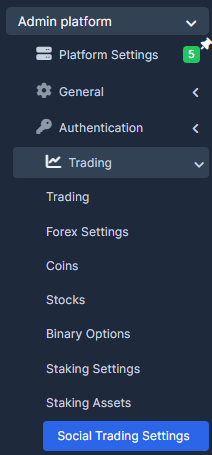
Step 2. Go to "Admin Platform", select "Trading" tab and choose select "Social Trading Settings".
Step 3. Go to "Social Following System" tab and make sure the settings are enabled for it.

Step 4. Go to "Copy Trading" tab and enable it. Here you can as well choose "Minimum" and "Maximum" allocation percentage.

Step 5. Go to "Trader Requirements" tab and choose "Minimum Trader Profit" and "Minimum Trader Trades".

Step 6. Go to "Advanced Settings" tab. Here you can set up "Copy delay" in seconds, enable or disable "Hide username" and choose the users to be added to the "Exclude Users List" which will help with selecting users to exclude from social trading functionality (leaderboard, trader profiles, etc.).
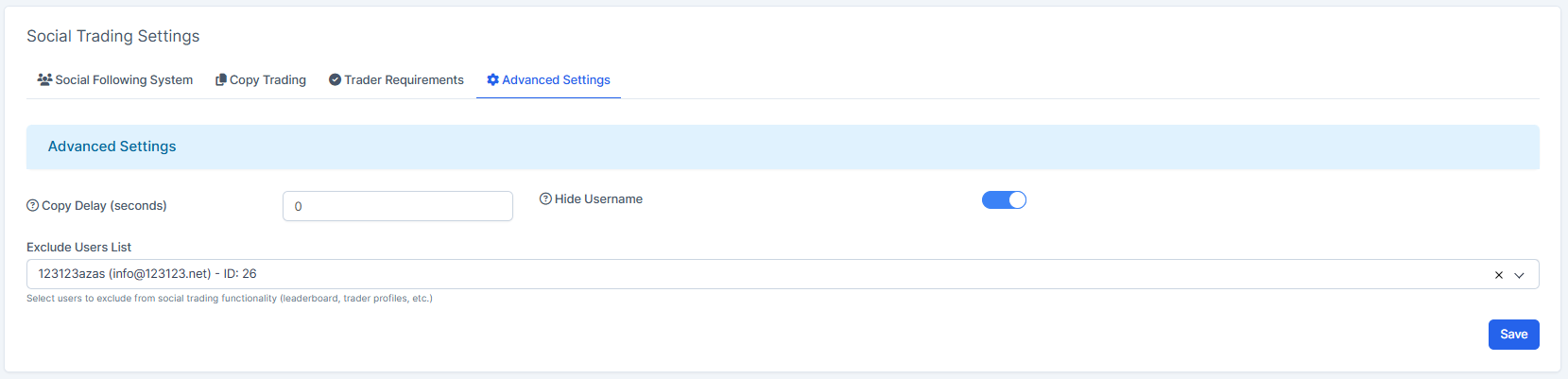
Step 7. Once done, press on "Save" to remember the choice.

Enabling Social Trading settings in the Trader Presets
Step 1. Go to "Setup".
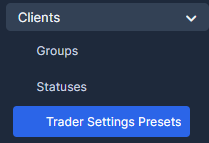
Step 2. Go to "Clients/Traders" tab and choose "Trading Settings Presets".
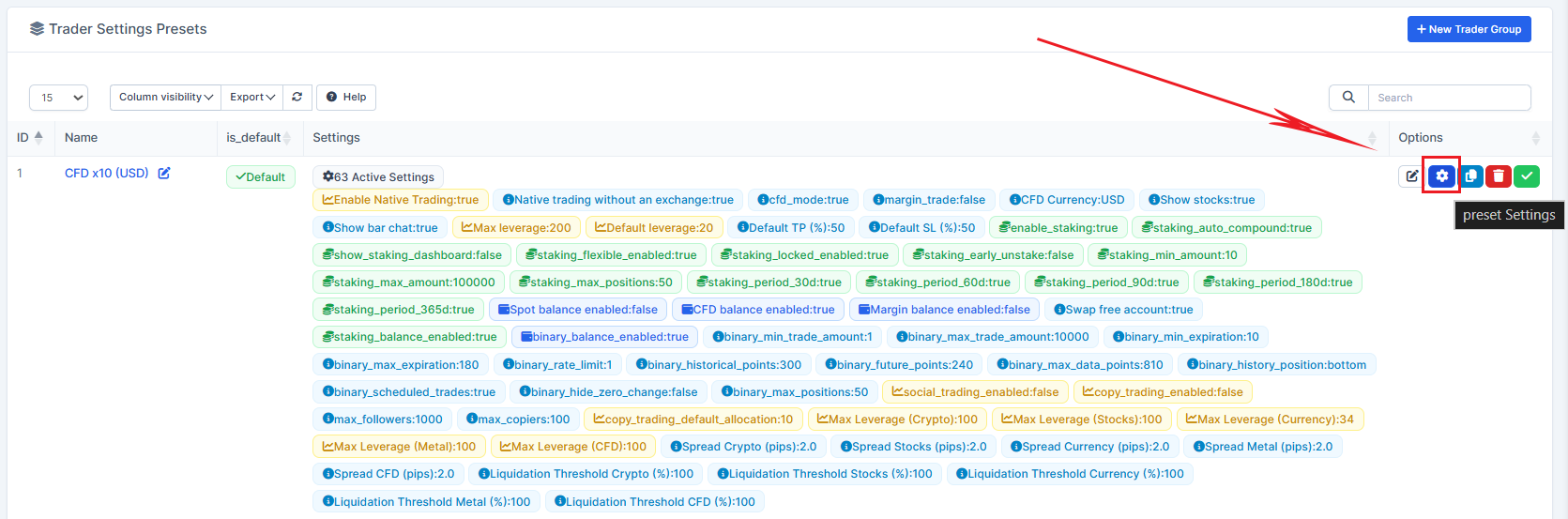
Step 3. Choose the preset and press on the preset's Settings.
Step 4. Go the the "Social Trading" tab to set the settings required for you.
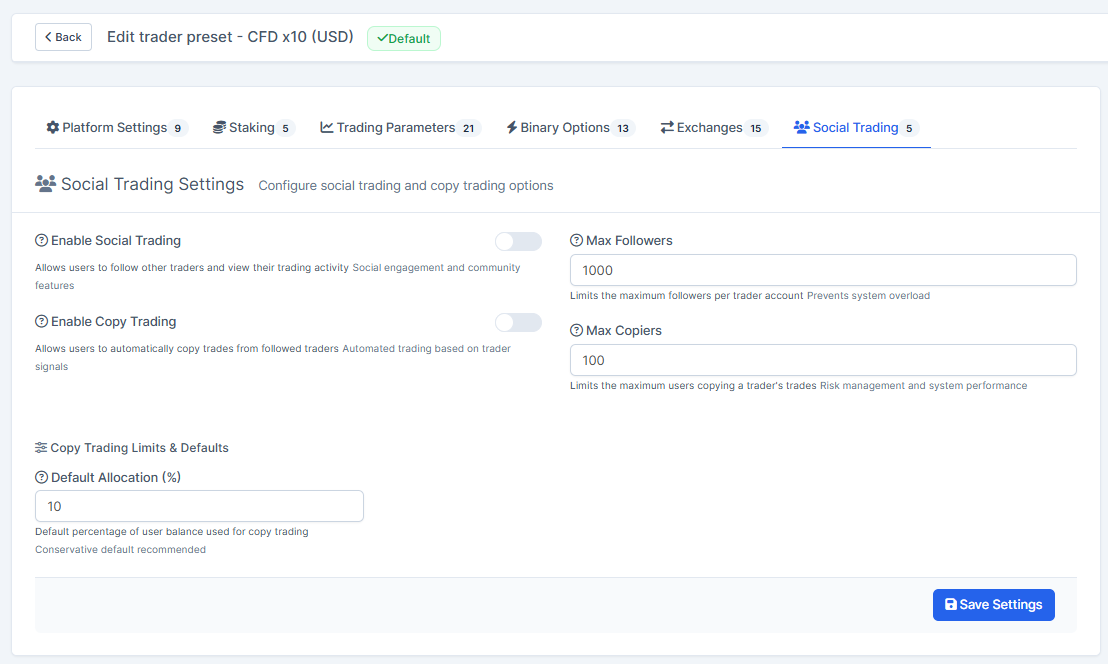
Step 5. Once done, press on "Save Settings" to remember the choice.
Enabling Social Trading settings in the Client's Settings
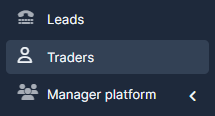
Step 1. Go to "Traders".
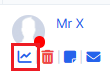
Step 2. Find the user and press on the graph icon to access the client's trader page settings.
Step 3. Go to "Summary" and choose "Social Trading" tab to access and manage the settings per the particular client.
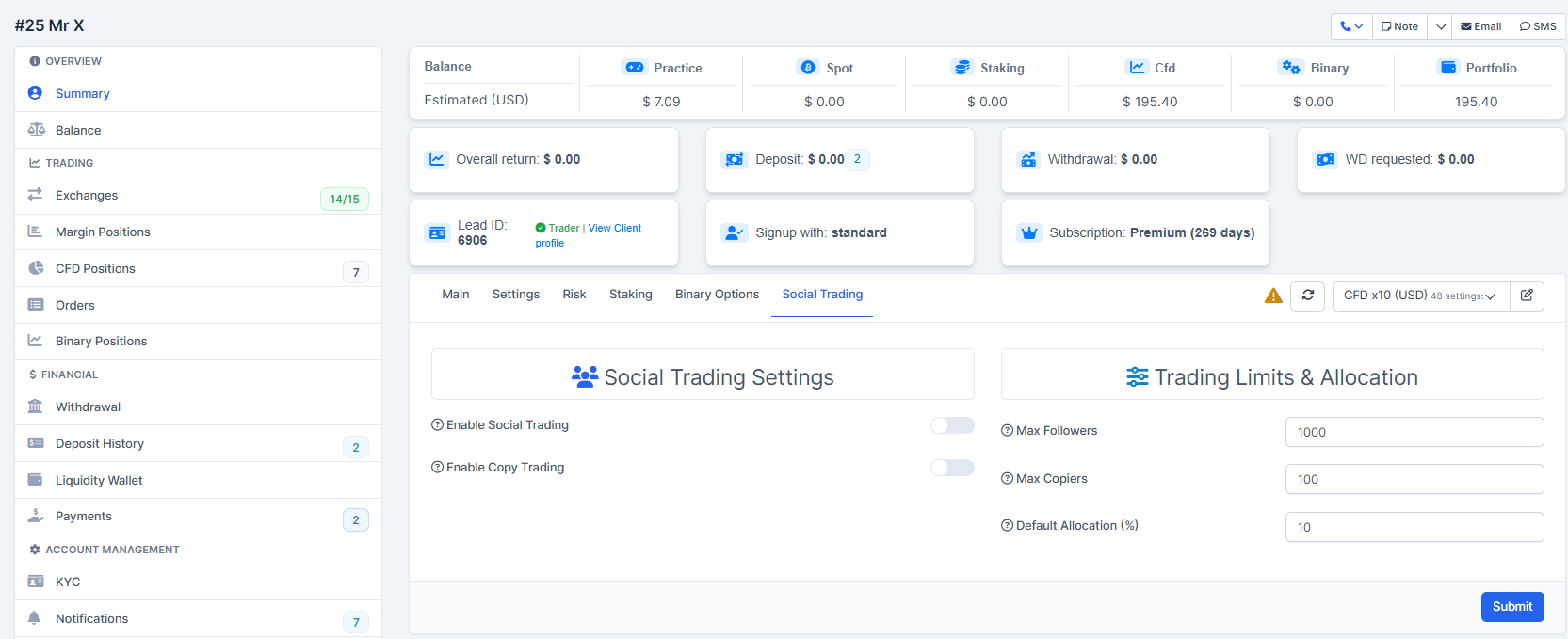
Step 4. If you set up the Trading Presets for the client, you can choose the preset here. In this case, the preset will define the client's settings.
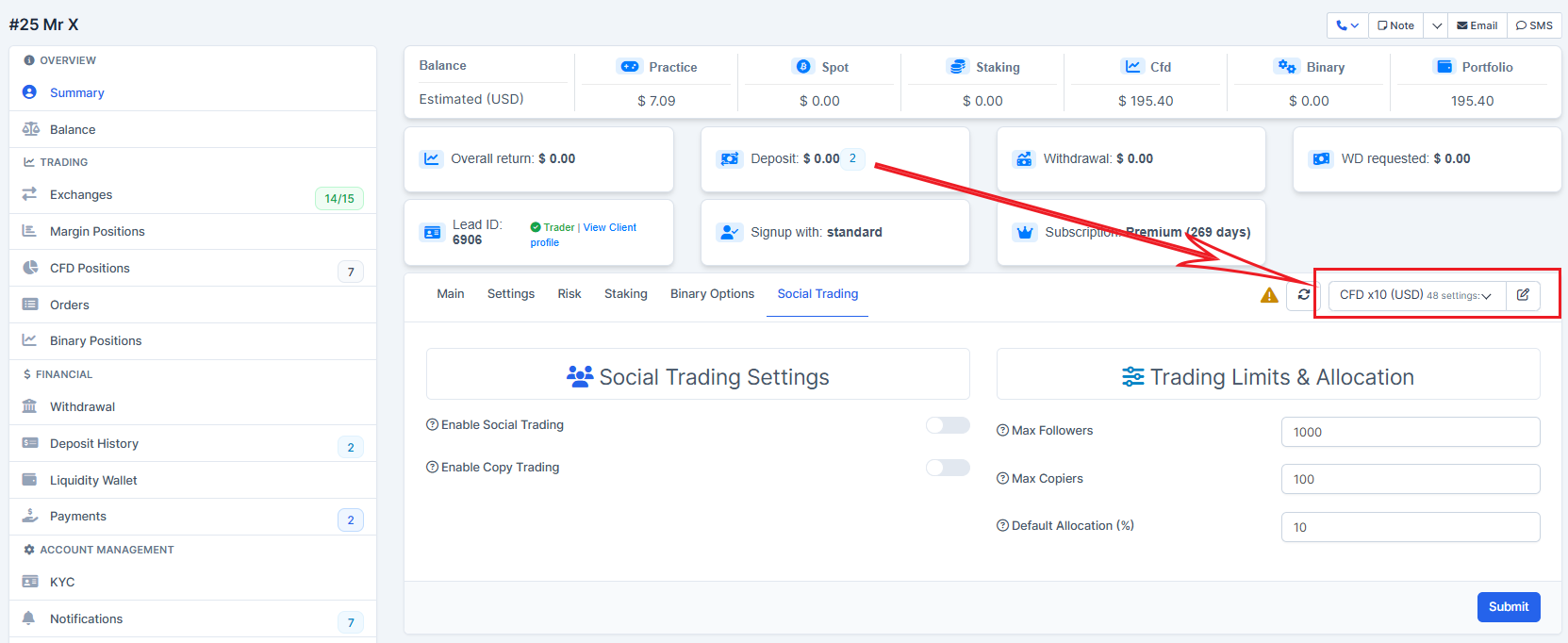
Step 5. Once done, press on "Submit" to remember the choice.
