ADMIN PLATFORM UTILITIES & GOALS GUIDE
STEP-BY-STEP NAVIGATION
The Utilities section is your go-to place for managing important business operations. Here you'll find tools for calendar management, activity tracking, file management, announcements, and more. The Goals section helps you track team and department performance.
IN THE CRM
HOW TO ACCESS UTILITIES
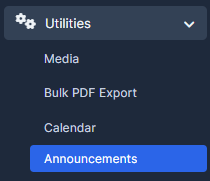
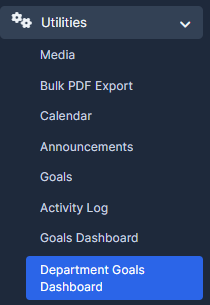
Go to the left sidebar menu, press on "Utilities" to expand the menu and see all available tools.
KNOWLEDGE BASE
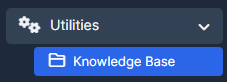
Go to Utilities > Knowledge Base
Store and organize helpful guides and information
Create articles to explain how features work
Help team members find answers quickly
Keep all company knowledge in one place
How to use it
1. Click "New Article" button to create a new guide

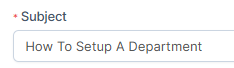
2. Give your article a clear title that describes what it covers
3. Write instructions in simple language that anyone can understand

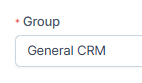
4. Organize articles into groups by topic
5. Use the search feature to find articles quickly.

6. Edit articles when processes or information changes
CALENDAR
Go to Utilities > Calendar
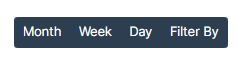
View events in Week, Month, or Day view
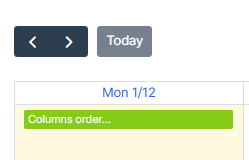
Navigate between dates using arrow buttons or "Today" button
Filter events as needed
All your scheduled meetings and events appear here

How to use it
1. Click on "Month", "Week", or "Day" to change your view
2. Use navigation arrows to move between time periods
3. Click "Filter By" to narrow down what you see

ACTIVITY LOG
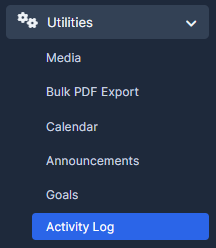
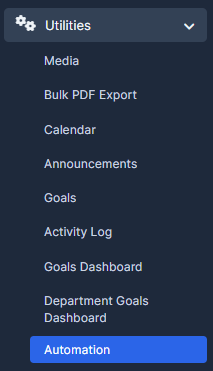
Go to Utilities > Activity Log
Total activities logged in the system
Today's activities count
Number of active staff members
Detailed log of who did what and when
How to use it
1. View statistics cards at the top showing total activities, today's activities, and active staff
Filter by Staff Member - select a person to see only their activities
Filter by Activity Type - choose what kind of action you want to see (login, file upload, etc.)
Filter by Module - select which part of the system (Leads, Traders, etc.)
Set date range to see activities within specific dates

2. Use the search box to find specific activities
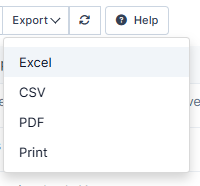
3. Export data using the Export button
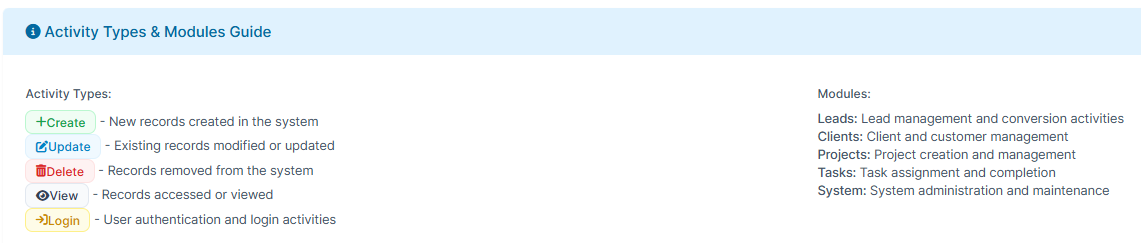
4. Read "Activity Types & Modules Guide" for detailed information about different activity types
MEDIA (FILES)
Go to Utilities > Media
Store and manage files used in your system
Upload documents, images, and other media
Organize files for easy access
Manage file storage
How to use it
1. Upload files you need for your business operations
2. Browse and search for files
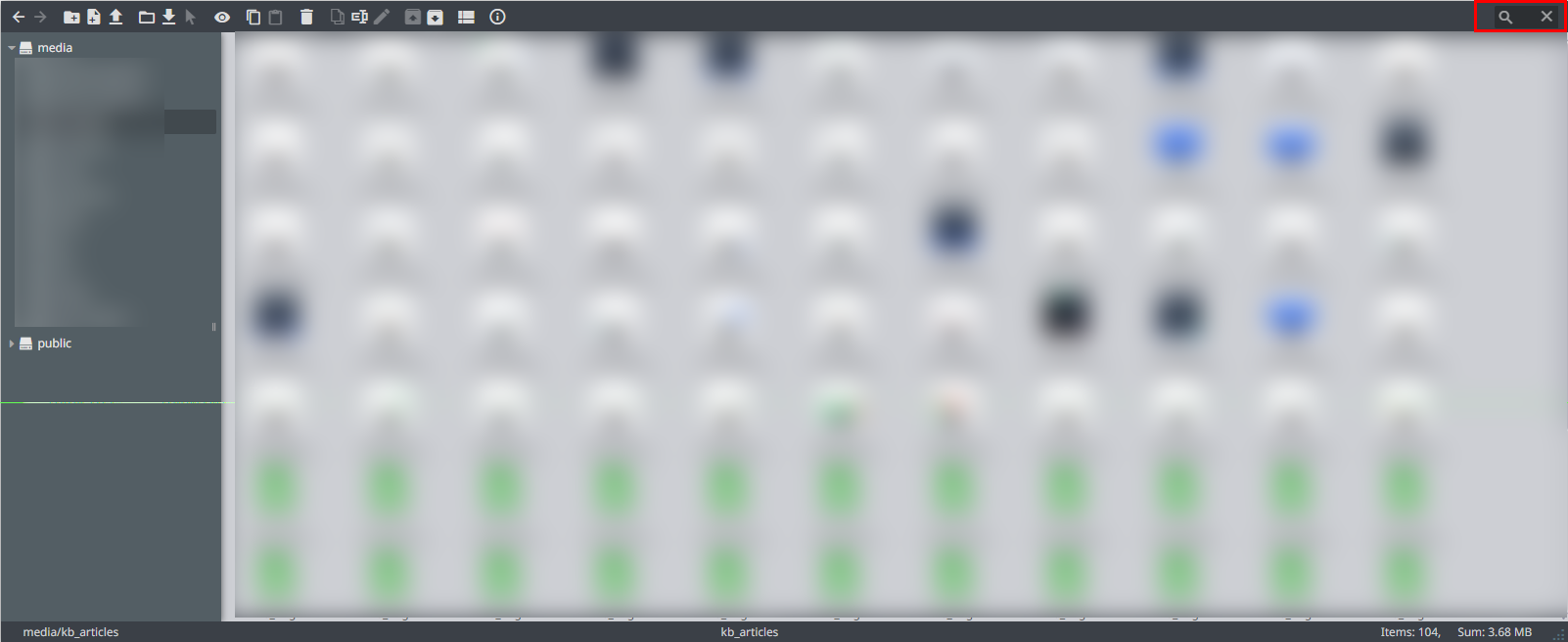
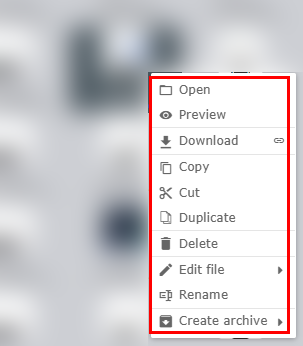
3. Manage the files
ANNOUNCEMENTS
Go to Utilities > Announcements
Create important company-wide announcements
Share updates with your team
Manage all announcements from one place
How to use it
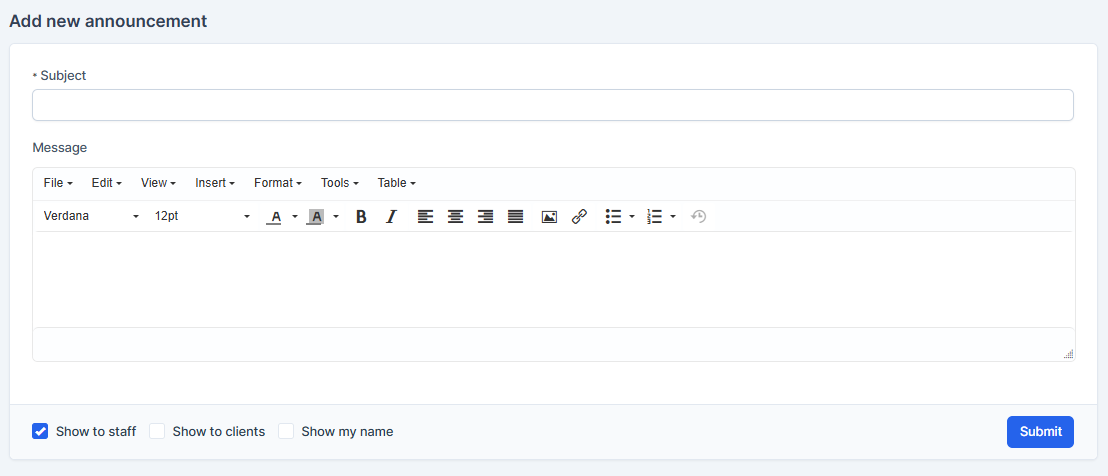
1. Click the "New Announcement" button to create an announcement
2. Fill in the announcement details (title, message, etc.)
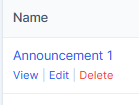
3. View all announcements in the list on the previous page. Edit or delete announcements as needed
BULK PDF EXPORT
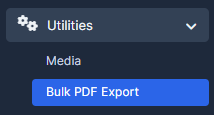
Go to Utilities > Bulk PDF Export
Export multiple documents to PDF format at once
Filter what you want to export
Download all files together
How to use it
1. Click on "Select Type" dropdown to choose what to export (documents, reports, etc.)
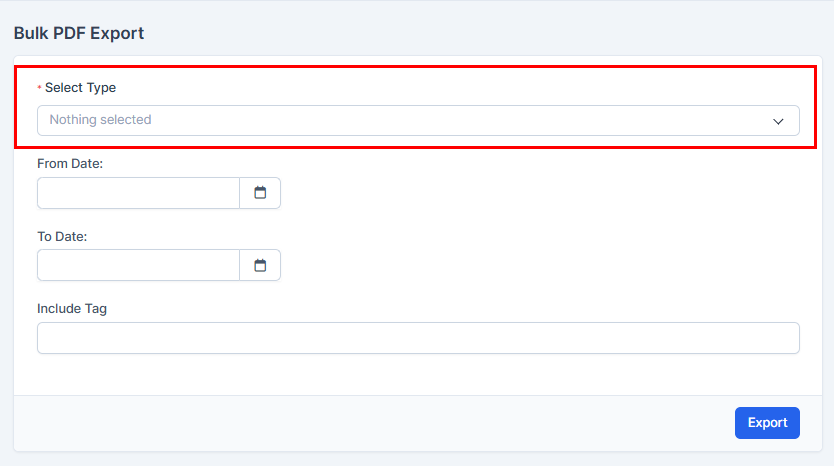
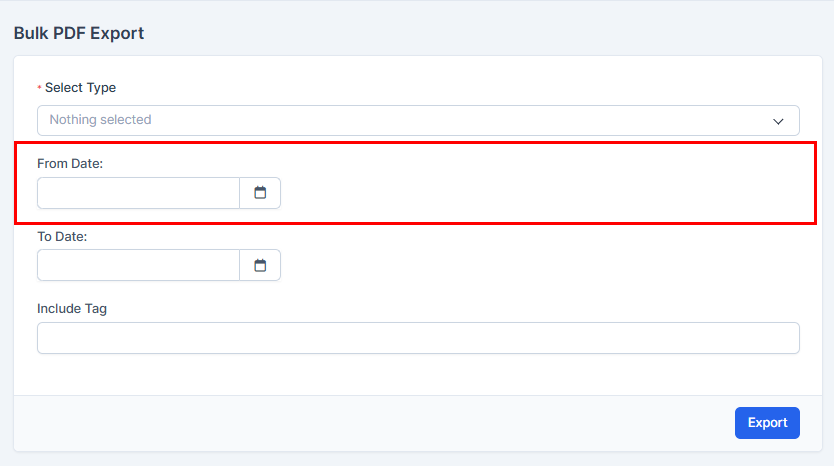
2. Set "From Date" - the starting date for your export
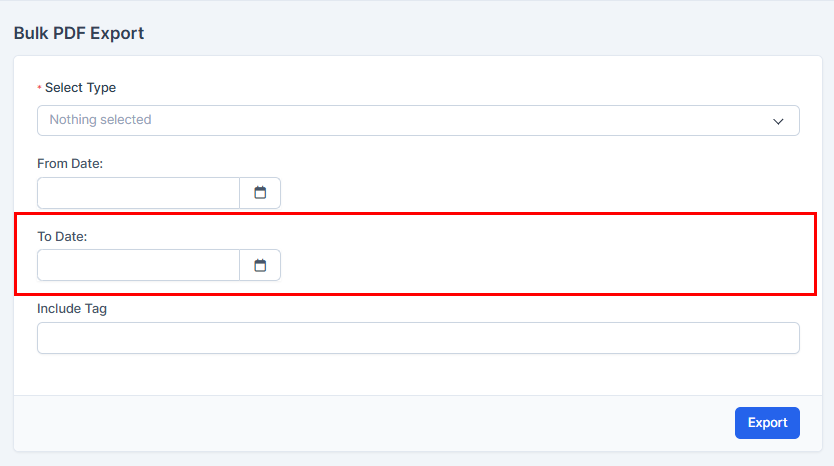
3. Set "To Date" - the ending date for your export
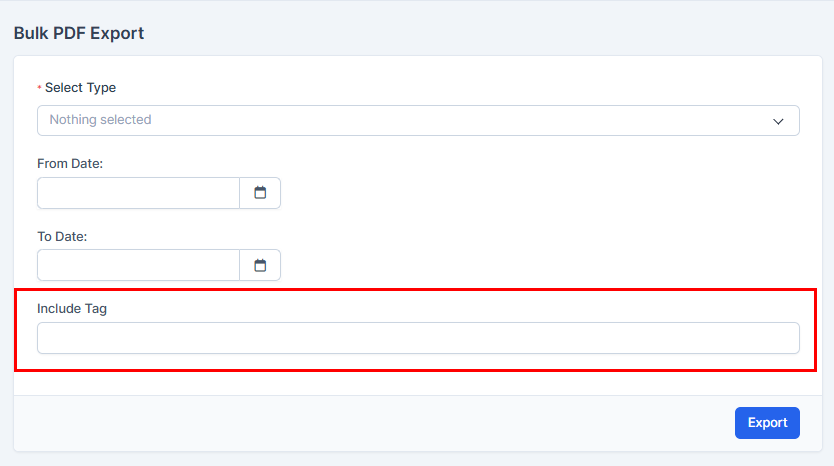
4. Add "Include Tag" (optional) to filter by specific tags
5. Click "Export" button to generate and download the PDF files

TICKET PIPE LOG
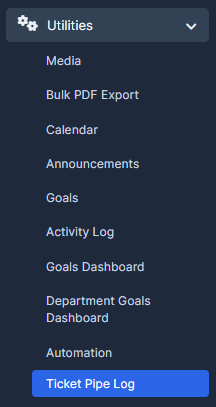
Go to Utilities > Ticket Pipe Log
View the history of all ticket communications
Track email and message flow
Debug communication issues
How to use it
1. Use "Filter by date" to see communications within a specific time period

2. View the table showing From Name, Date, To, From Email, Subject, Message, and Status

3. Search for specific communications using the search box
4. Click "Clear log" button to remove old logs (use with caution)

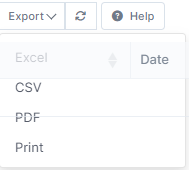
5. Export logs using the Export button
AUTOMATION
Go to Utilities > Automation
Create automated processes
Set up rules that trigger actions automatically
View automation logs and history
How to use it
1. Click "Add automation" to create a new automated process
2. Click "Automation logs" to view what automations have run
3. Configure conditions and actions for your automations
4. Monitor automation performance in the logs

5. Export automation records using the Export button
GOALS - TRACKING TEAM PERFORMANCE
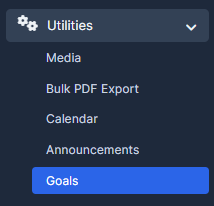
Go to Goals section from the sidebar menu
Set targets for your team
Track progress toward goals
Measure team performance
How to use it
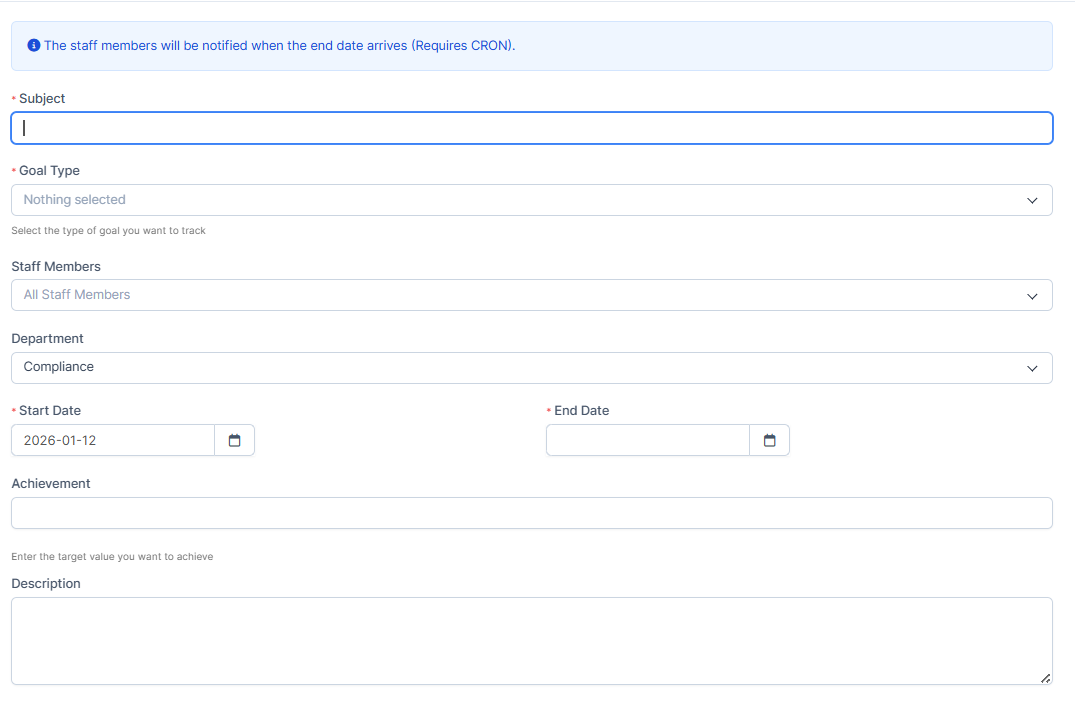
1. Click "New Goal" button to create a new performance goal

2. Define the goal details (name, target number, deadline, who it applies to)
Assign goals to team members or departments
Track progress as work is completed
3. Use "Goals Dashboard" button to see visual performance summaries
GOALS DASHBOARD
Go to Goals > Goals Dashboard
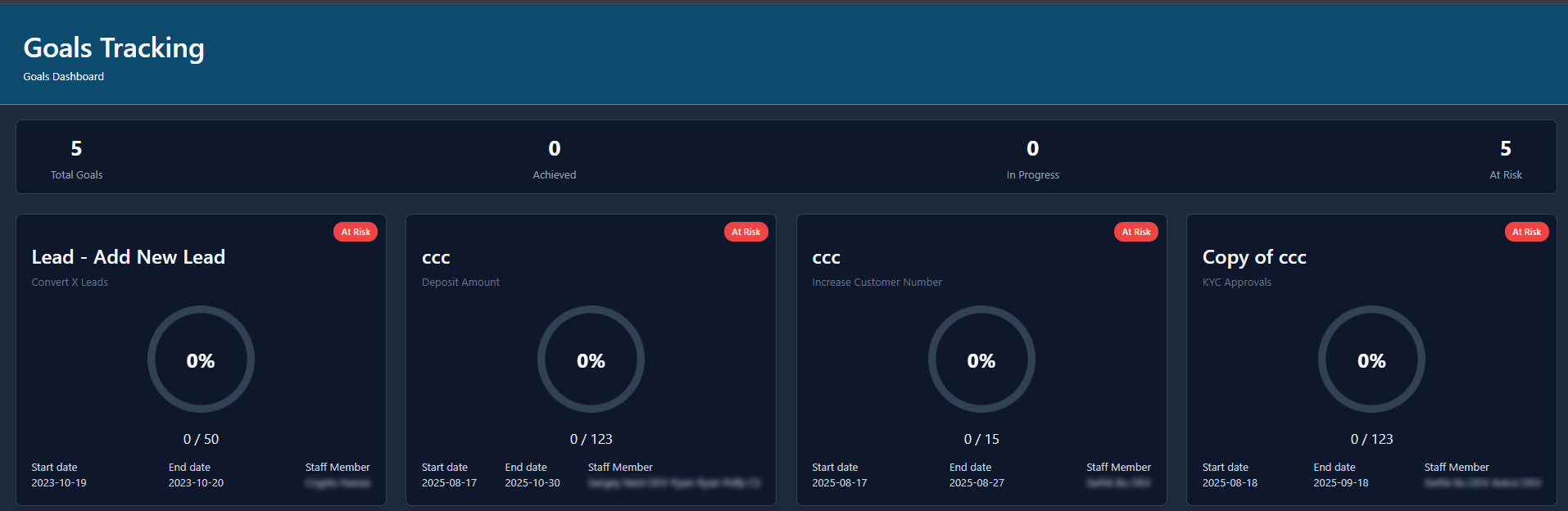
Visual representation of all goals
Progress bars showing completion status
Team members' goal achievements
Overall performance metrics
How to use it
1. View all goals in one place. See which goals are on track and which need attention
Identify top performers
Get a quick overview of team performance
DEPARTMENT GOALS DASHBOARD
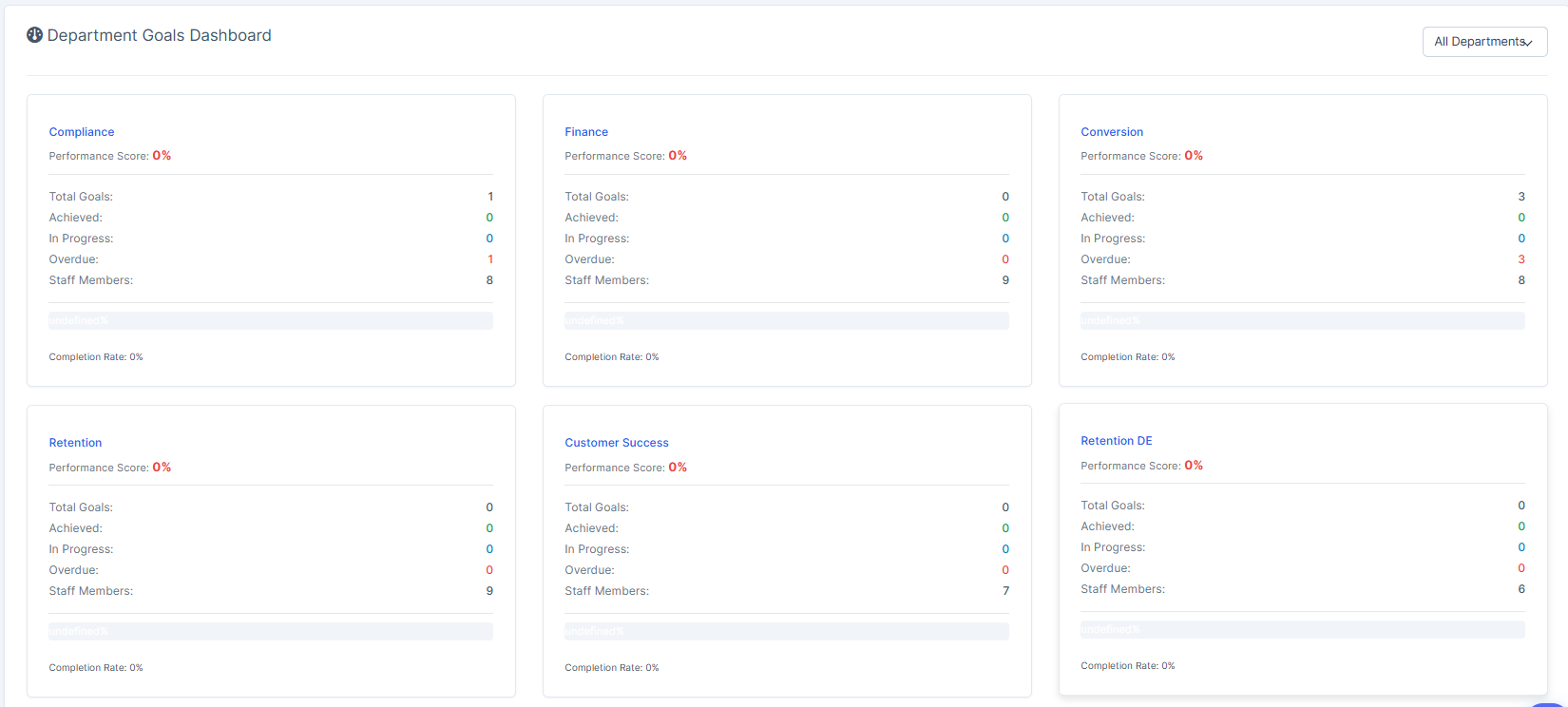
Go to Goals > Department Goals Dashboard
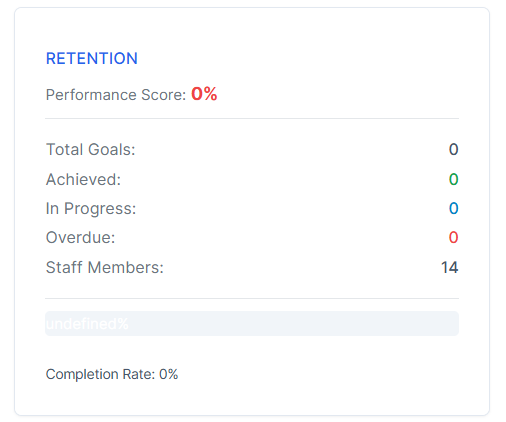
Performance cards for each department (Compliance, Finance, Sales, Conversion, etc.)
Performance Score for each department
Total Goals count
Goals Achieved count
Goals In Progress count
Overdue Goals count
Staff Members in each department
Completion Rate percentage
How to use it
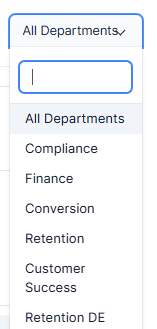
1. Click "All Departments" dropdown to filter by specific department
3. Compare performance between departments
Identify which departments need support
Track completion rates
Monitor overdue goals
See staff member count per department
Use data to make decisions about resource allocation
TIPS AND TRICKS
FILTERING DATA
Most utilities pages have filter options. Use them to narrow down what you see:
1. Look for filter dropdowns or buttons
2. Select your criteria
3. Results update automatically
4. Combine multiple filters for specific data

EXPORTING DATA
Go to any list page > Click "Export" button > Choose your format > Download the file
SEARCH
Go to any list page > Look for search box > Type what you're looking for > Results update in real-time
NAVIGATING PAGES
Use page navigation buttons (First, Previous, Next, Last) to browse through entries
CHANGING ITEMS PER PAGE
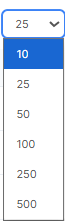
Look for the dropdown showing number of items (like "40") and change it to show 10, 50, 100, 250, or 500 items at once