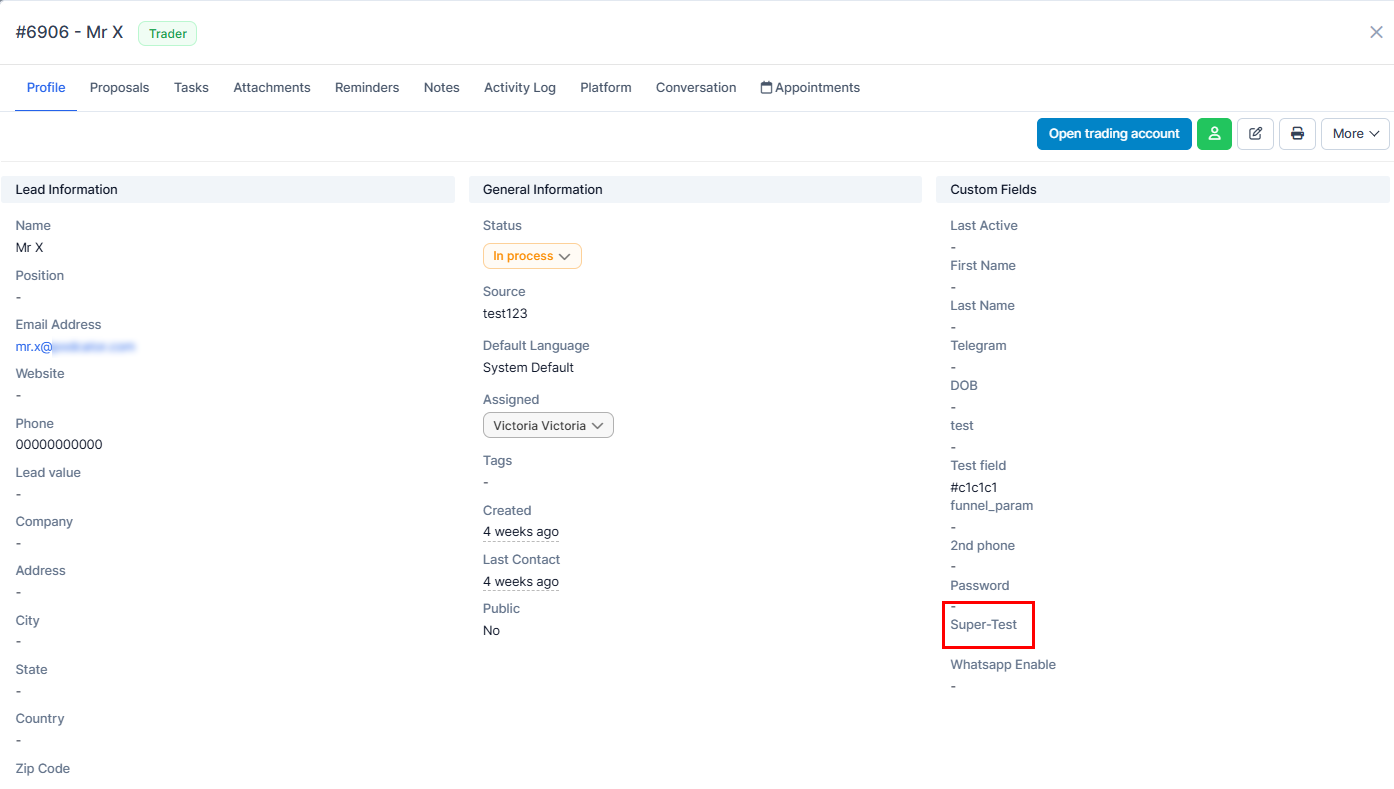
How to Add Costum Fields to Leads?
IN THE CRM
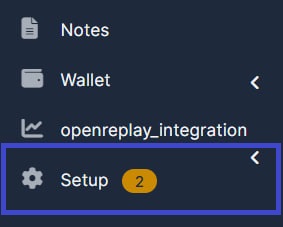
1. Go to "Setup".
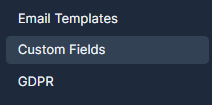
2. Choose "Custom Fields".
3. Go to "New Custom Field".
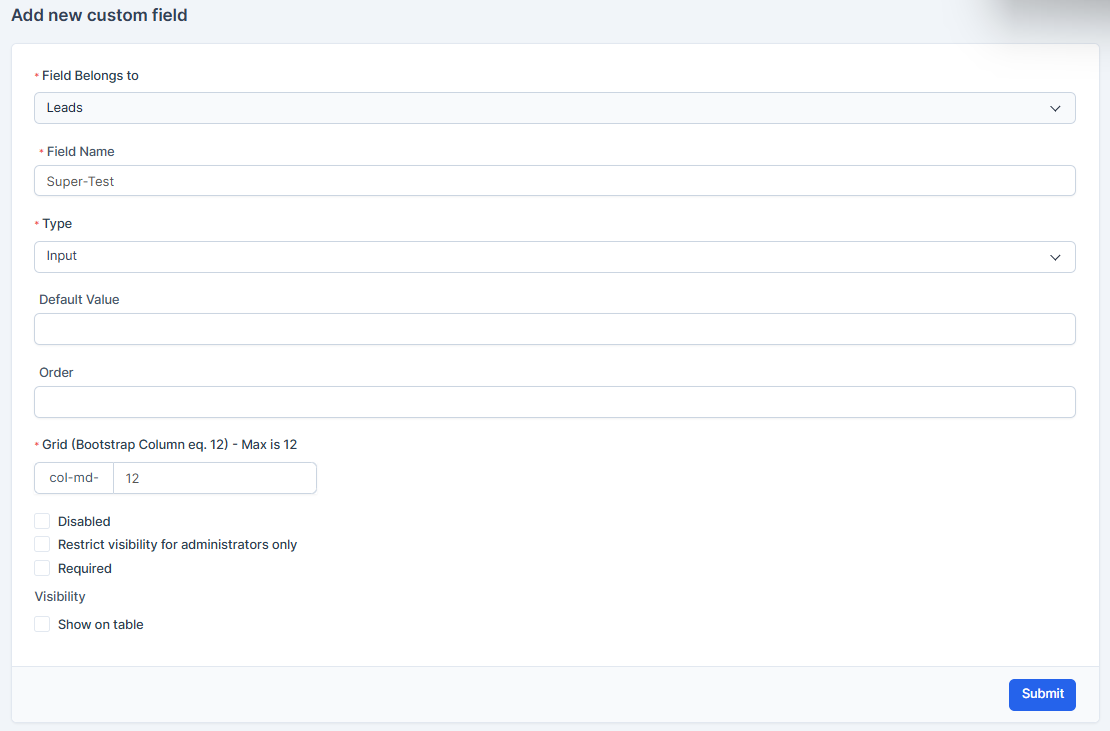
3. Fill in "Field Belongs to", "Field Name", "Type". In our case it's "Leads", "Super Test" and "Input".
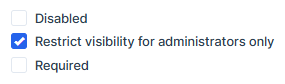
4. You can choose "Restrict visibility for administrators only" so that she field was visible only for admins.
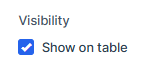
The "Show on table" will allow you to see the field in the main table on Leads.
5. Press on "Submit" to remember your choice.

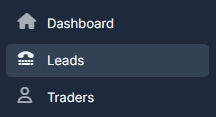
6. To check out the field, go to "Leads".
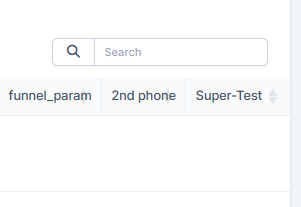
7. Scroll to the side, you will be able to see your field "Super-Test".
8. Press on the name of the lead or on the view button.

9. You will be able your new field here.