How to Change the Direction of the CRM page?
IN THE CRM
General Settings
Those settings will define the crm look for all the users
1. Go to "Setup" in the settings panel on the left side of the CRM.

2. Scroll down the page to find "Settings".

3. Choose "System & Core" and select "General".
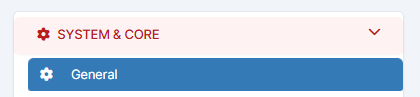
4. Scroll down to find the directions and select the proper direction.
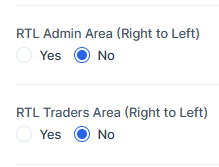
The "Admin Area" will dictate the direction of the crm menu.
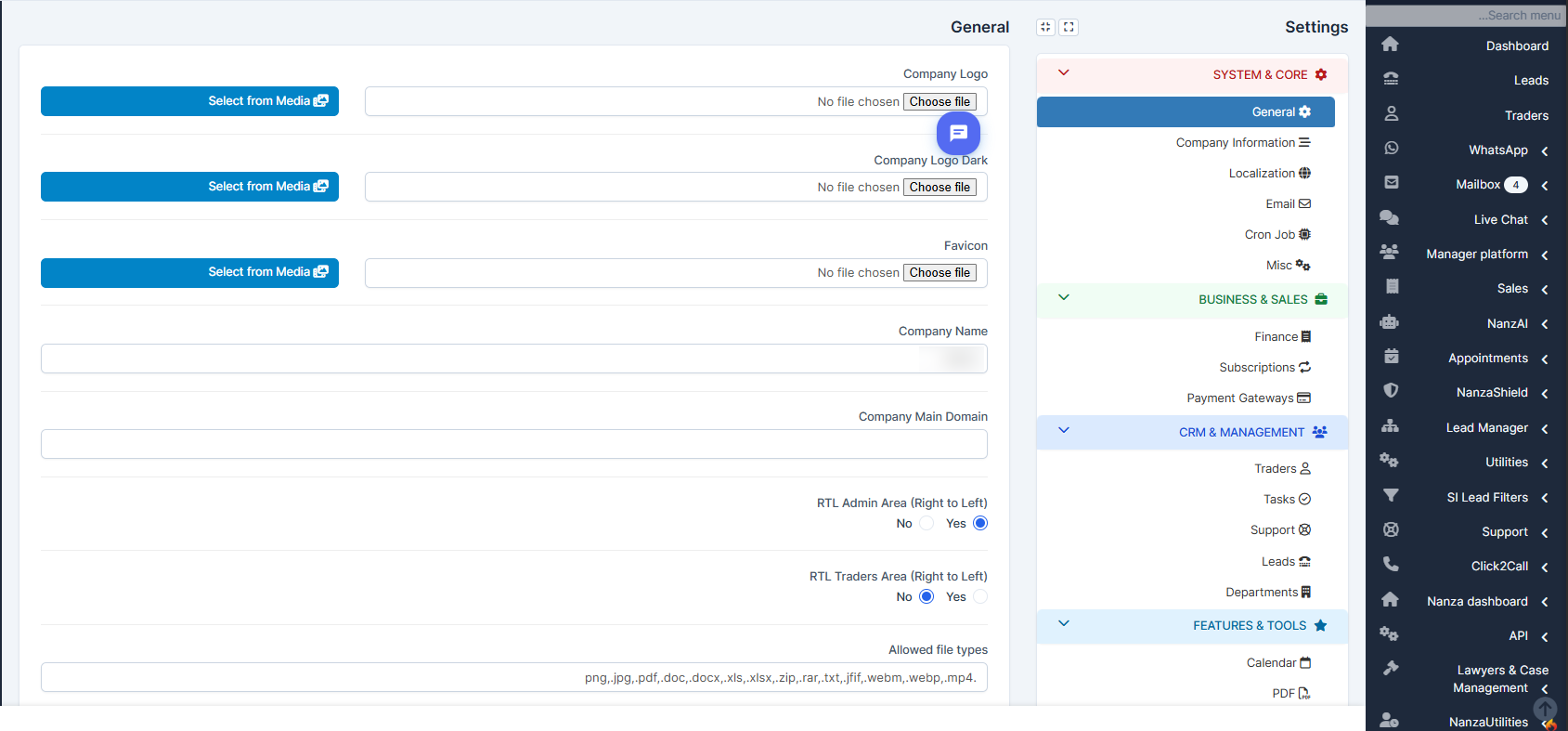
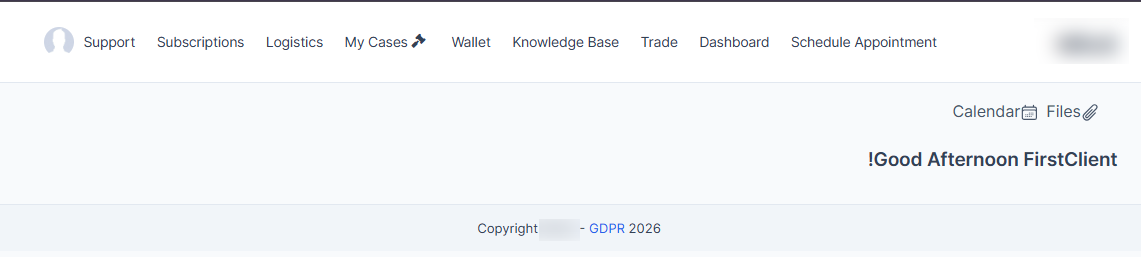
The "Trader Area" will define the portal direction of the menu.
Personal Agent Settings
Those settings will define the crm look for the particular staff member
1. Go to "Setup".
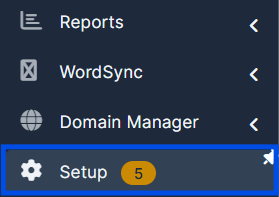
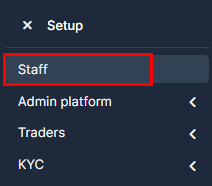
2. Go to "Staff".
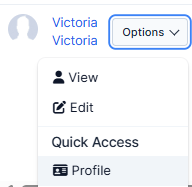
3. Choose the staff member. Press on "Options". Go to "Profile".
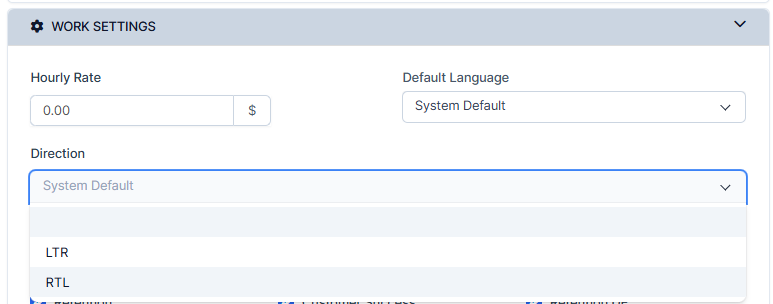
4. Scroll down to the "Work Settings" category. Press on the "Direction" to choose "Left to Right" (usual) direction or "Right to Left".
5. Once done, press on "Submit" to remember the choice.
