How Use Telegram Group and Topics?
Our company provides you with a convenient solution - telegram group with for a quick support.
Telegram is a great app that allows you to upload media freely.
Managing Group Topics
For your convenience and quick response from our staff, we ask you kindly to send your questions to the relevant groups.
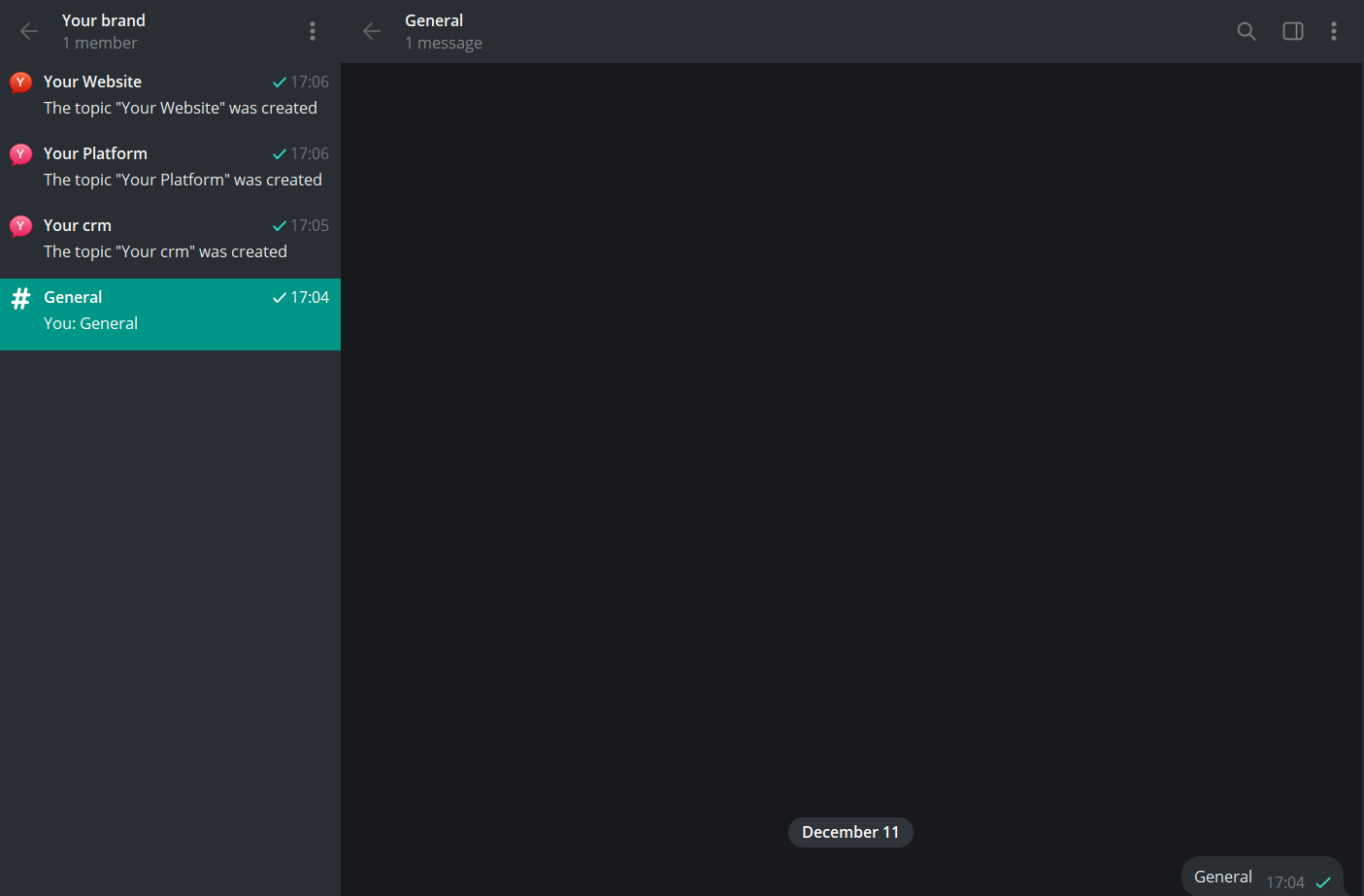
Below is an example of how the topics look. Instead of "your crm", "your platfrom", etc, there will be your brand's name and the clarification of the purpose of the group, e.g. "crm".
The "General" topic is used for the updates, announcements, etc.
The "CRM" topic is used for the crm-related (for managing users, leads, and all key platform records in one place) questions.
The "Platform" topic is used for the platform/app-related (this is the place where your clients are able to trade) questions.
The "Website" topic is used for the website-related (your online page that showcases a company’s platform and the company's information) questions.
Finding the links
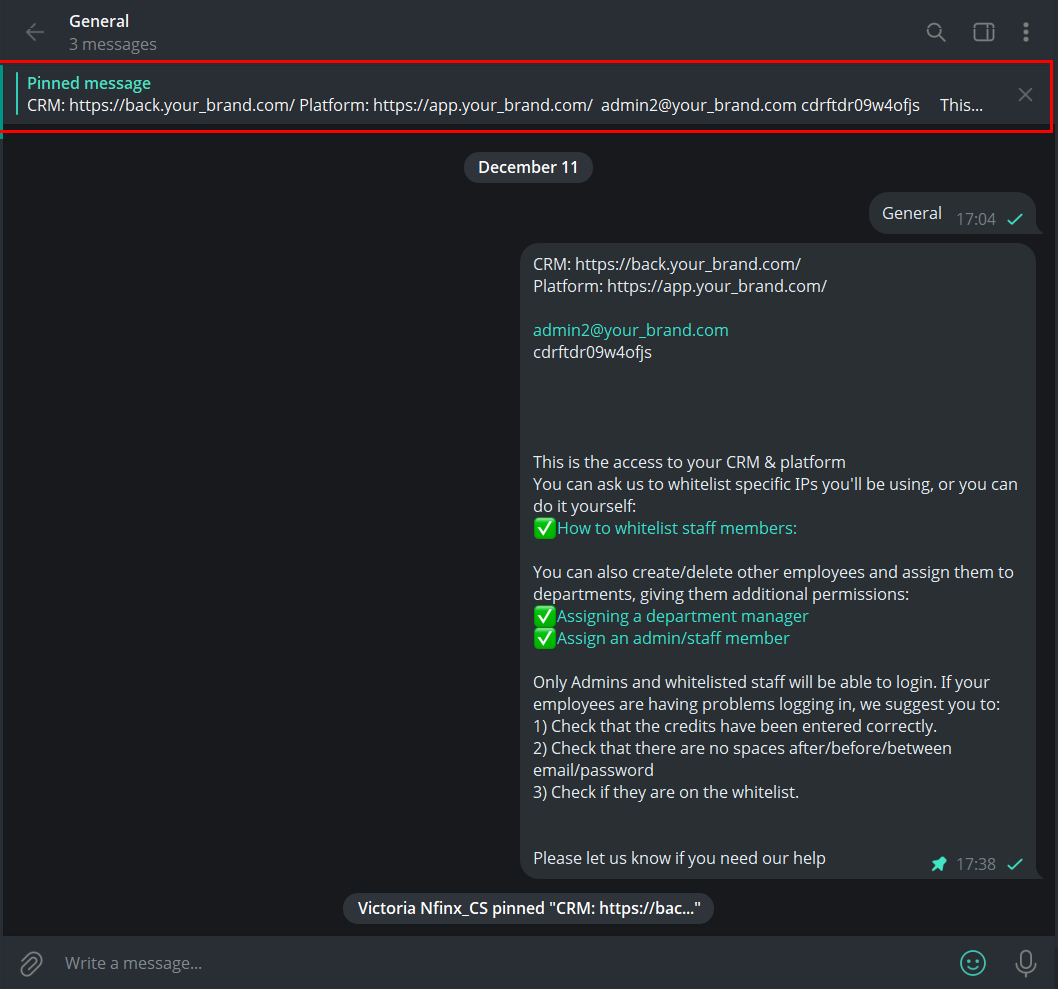
Depending on the subject of your group, you will find links pinned to these topics. You can always press on the pinned message to access the links.
The "General" topic will provide you the information with the access to your crm and platform, the quick Knowledge Base guide and the form for the Affiliation Integration.
In the "CRM" topic you will find your crm address pinned.
In the "Platform" topic you will find your platfrom/app address pinned.
In the "Website" topic you will find your website address pinned.
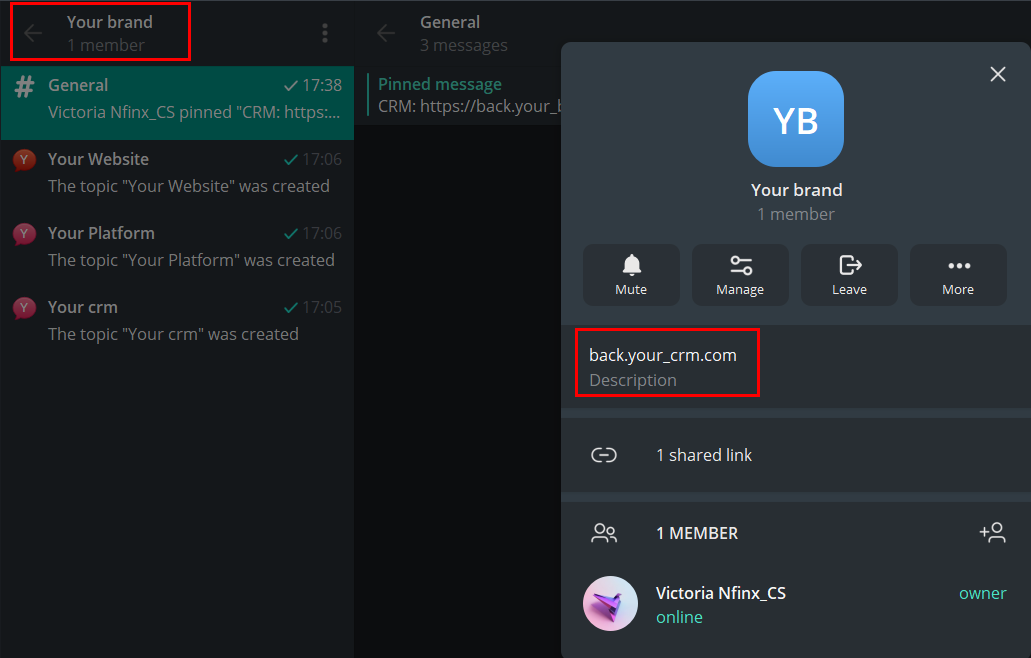
You will always be able to find the access to your crm as you press on the name of your group.
Adding a staff member
In the case you need to add your team/staff member to the group:
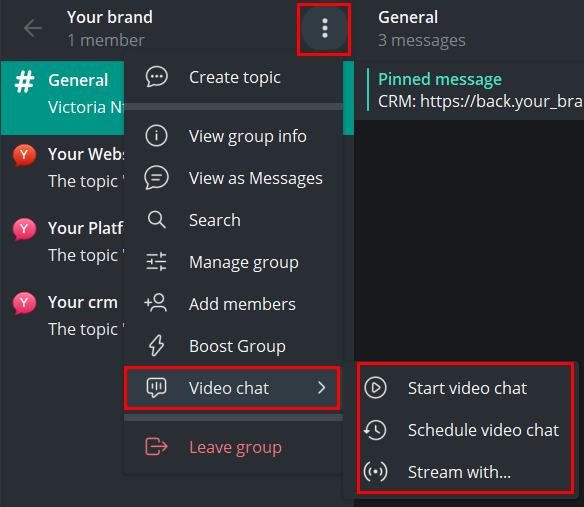
1. Press on three dots.
2. Choose "Add members".
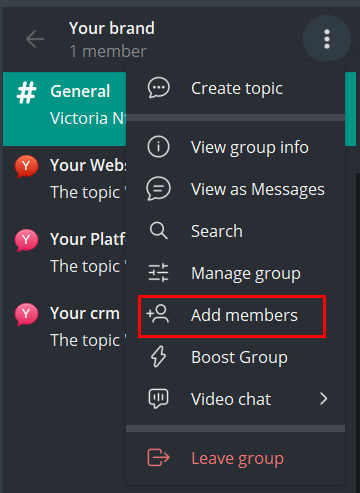
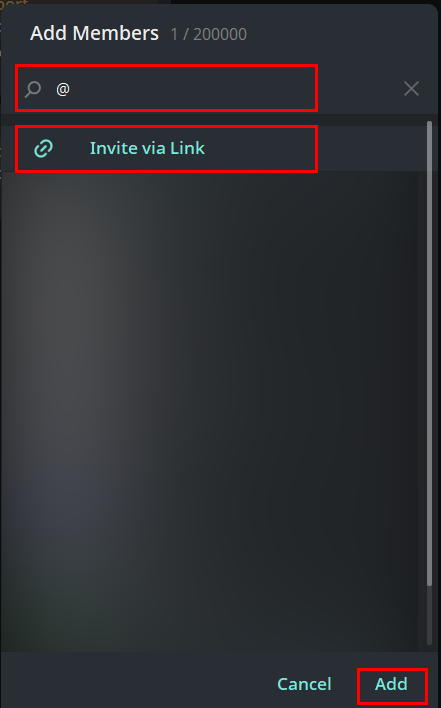
3. Put in the nickname of your staff member in the search field or invite them via link. Press "Add" once you chose them.
Making calls
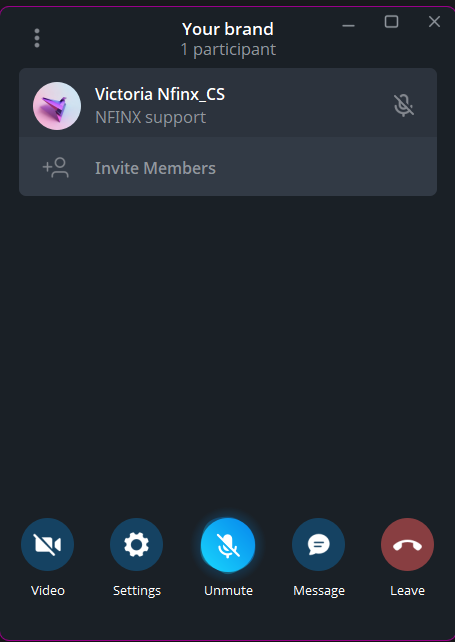
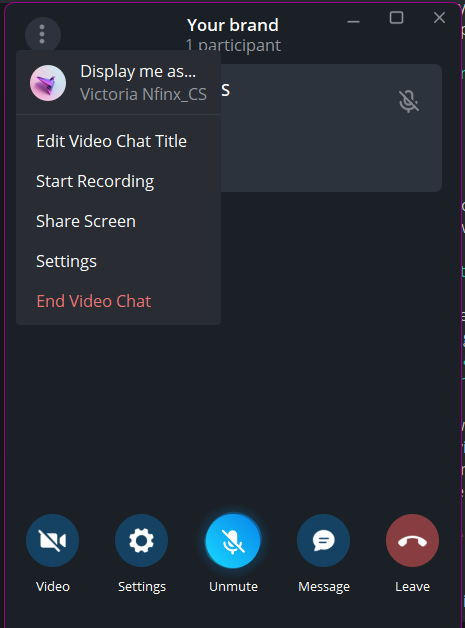
Any group member can arrange calls in the group for all the members to join the call.
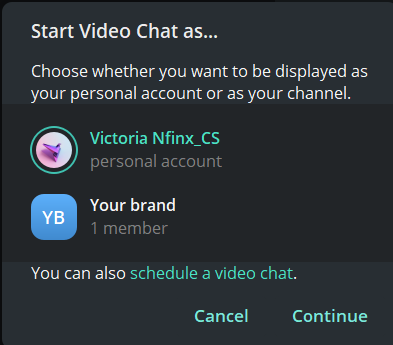
You can chose whether to use your own account or to call from the group name.
You can find lots of useful functions by pressing on three dots.
Uploading Files
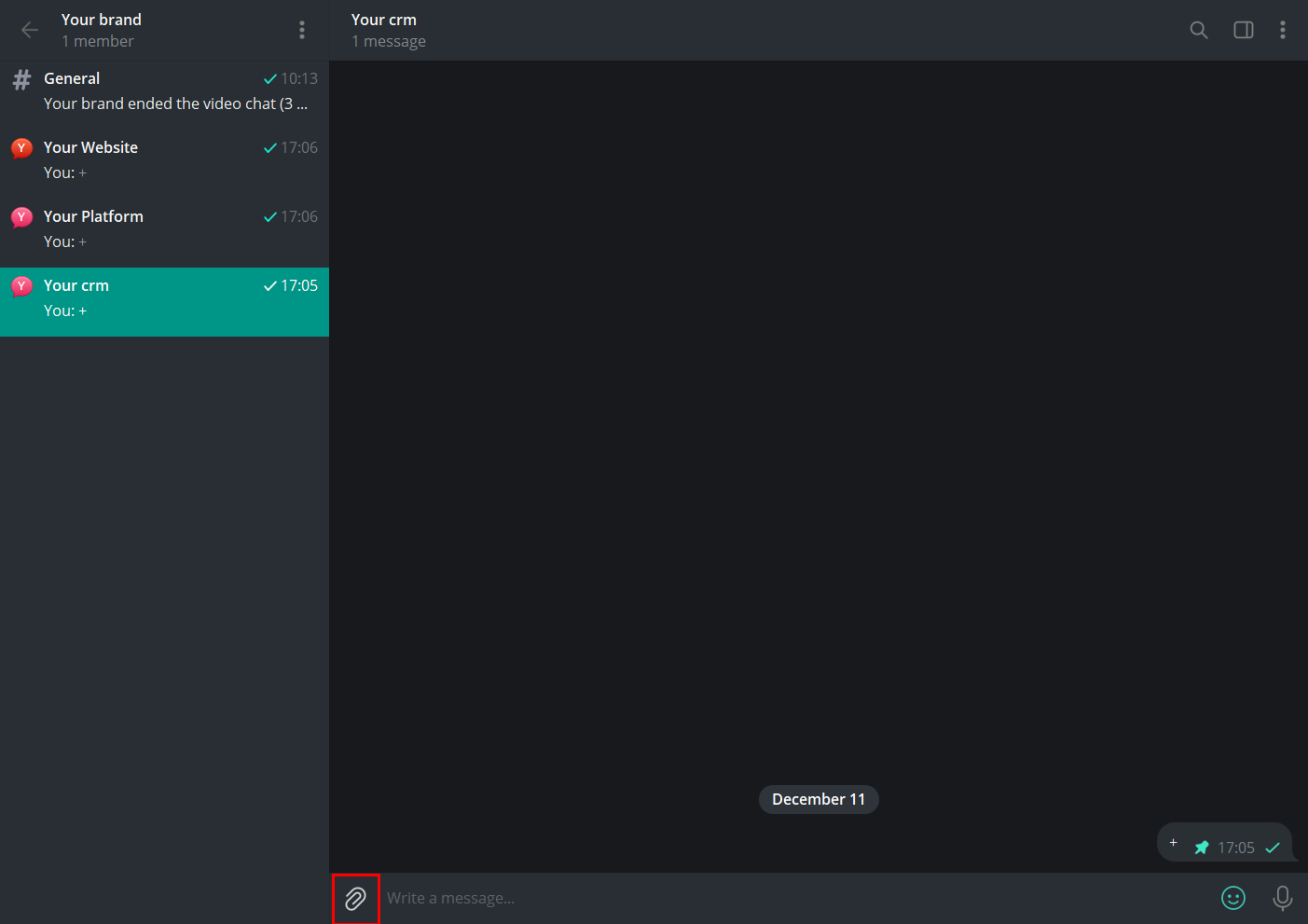
Just like and most of similar apps, Telegram allows to insert media, files and text via simple "Ctrl+V" command.
In the case if you need to upload the file from your device, press on the clip. You will get the access to your PC, where you will be able to choose file, media, folder, etc.
Making a video
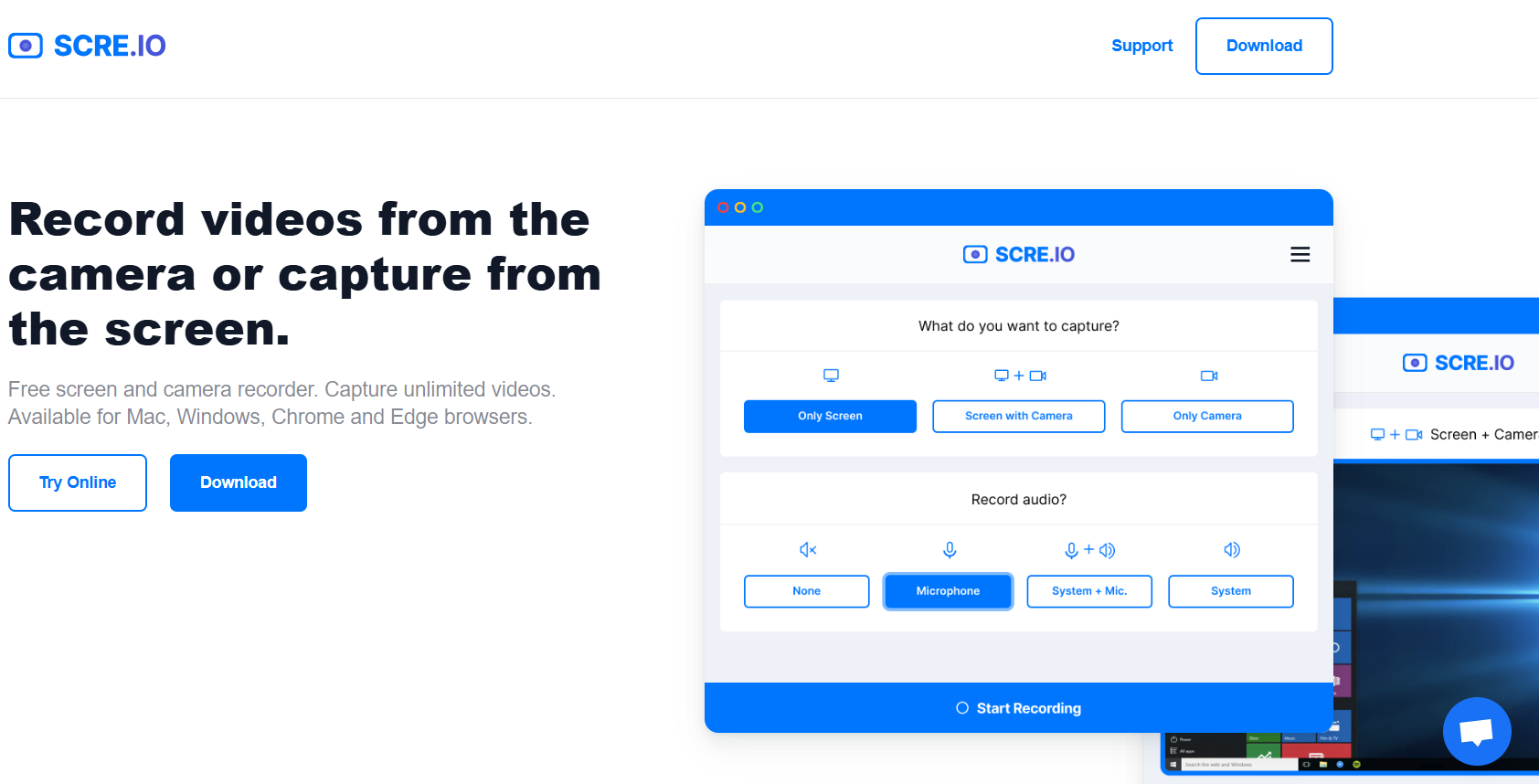
If you have the problem that cannot be described with a screenshot or text, please make sure your video is informative enough. Please avoid blurry recordings which contains almost no information. You can record one by using https://scre.io/ and uploading to telegram. This is a free app, that requires no registration and downloading.
Do's & Dont's
Be precise with your requests. A clear and accurate request will speed up the resolution process.
To ensure your question is answered, please ask it in the group. This way, all our support members will be able to see it and help you.
If you have a problem, make sure you refer to the correct channel and provide a description of the problem reinforced with a screenshot, video or link.
Please avoid sending voice messages and write your request instead.
Don't hesitate to use the links pinned in the chats. They contain useful information that may help you find the answers you need. For example, Knowledge Base articles or the Affiliation Form creation process.