Where to Check Automated Login Detection Settings?
Those emails are sent by the system automatically as the action comes from the user (e.g. login attempt, password reset, deposit attempts, withdrawals, etc.)
Enabling the Automated Emails
IN THE CRM
1. Make sure the email settings for your platform are done. Please see this article: How to Configure Mailbox in the CRM
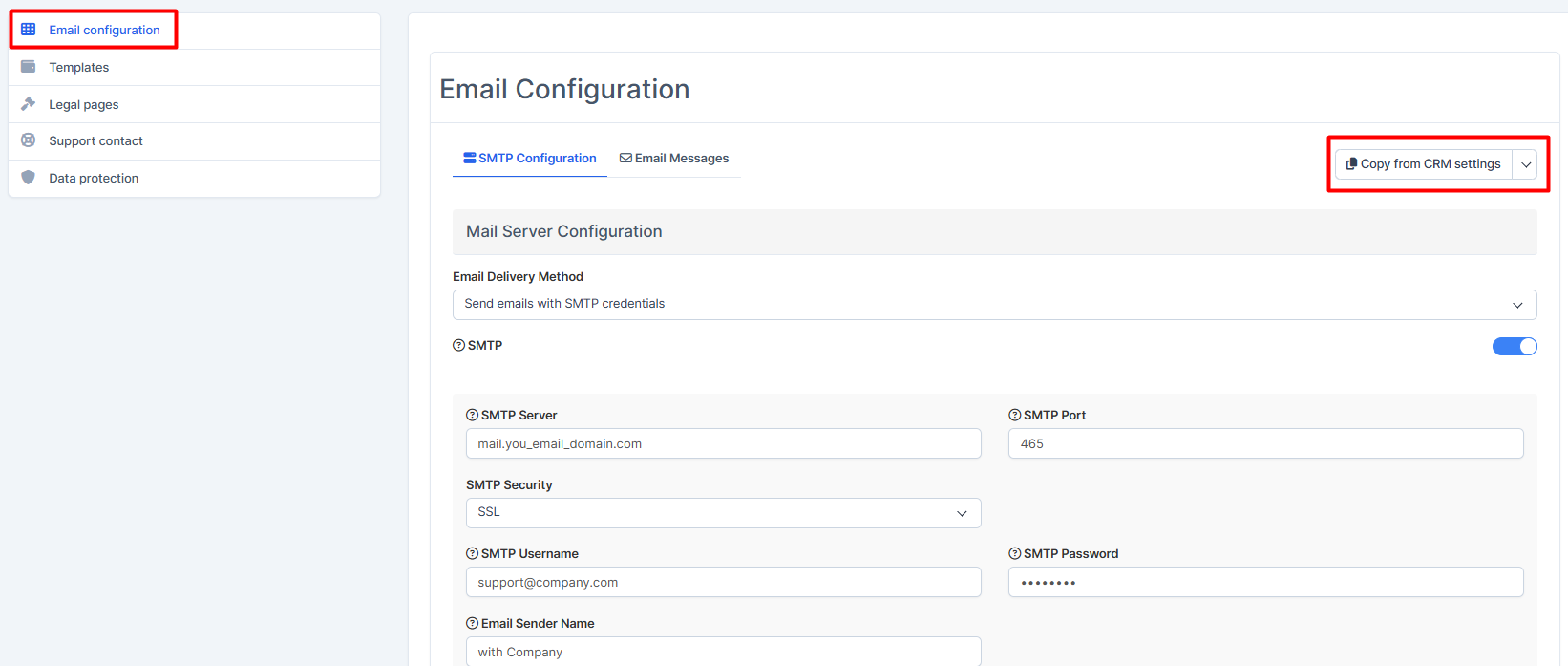
2. Go to the "Setup".

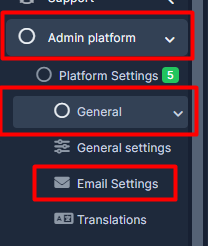
3. Press on the "Admin Platform", go to "General" and choose "Email Settings".
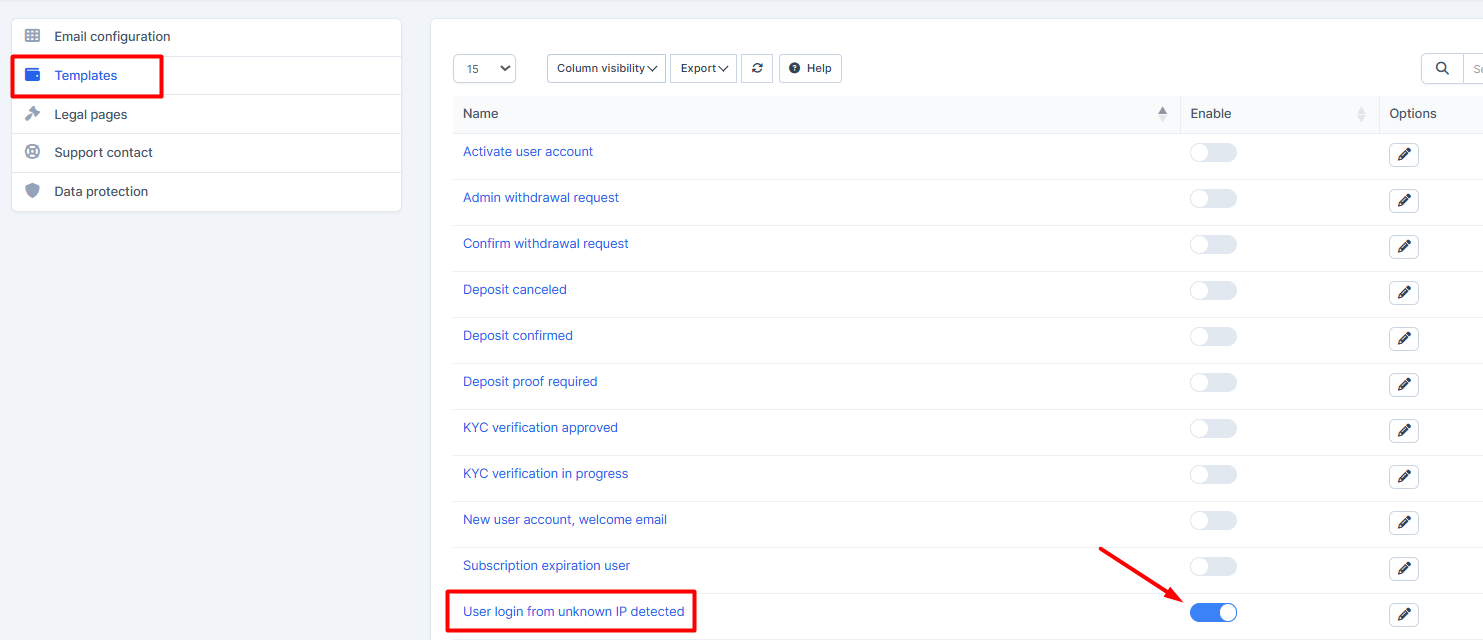
4. Find "Template", choose "User login from unknown IP detected" and enable it.
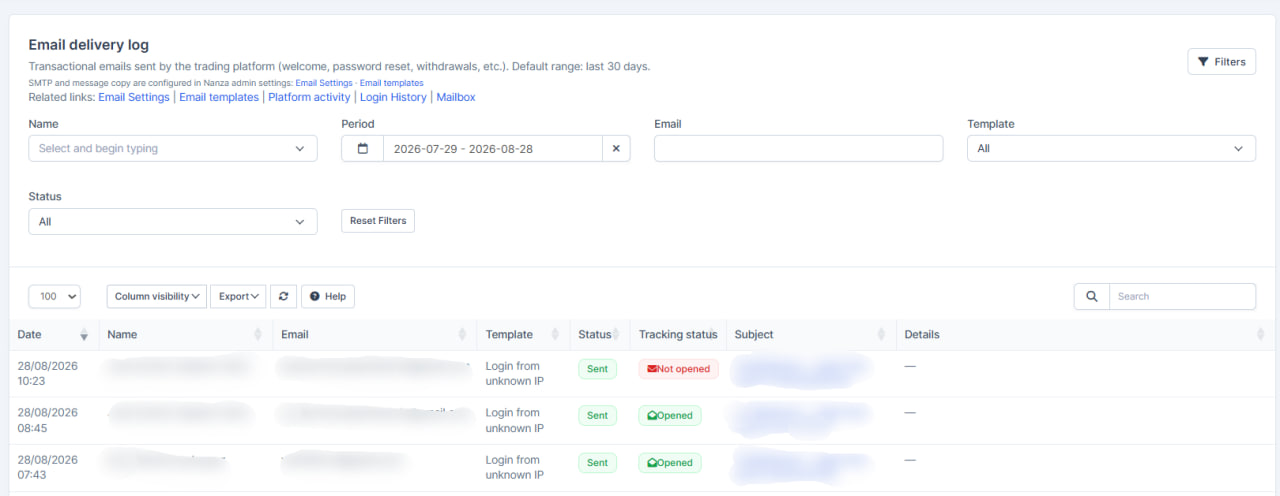
Where to Check the Emails Log?
IN THE CRM
1. In the main menu, press on the "Manager Platform", "Security", and choose "Email delivery log".
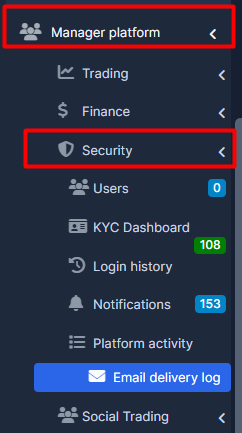
You will be able to check the automated emails activity.