AFFILIATE MANAGEMENT GUIDE
STEP-BY-STEP NAVIGATION
Affiliate Management is the place where you control your partner program. It helps you track which affiliates bring clients, how much commission they earn, and when you pay them.
IN THE CRM
DASHBOARD
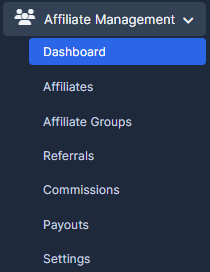
Go to Affiliate Management > Dashboard
The Dashboard gives you a quick overview of how your affiliate program is performing. You can see totals, trends, and recent activity.
How to use it
-
Choose the date range to see results for today, this week, this month, or a custom period.
-
Review total referrals, total sales or deposits, and total commissions.
-
Check charts or summary blocks to see if performance is going up or down.
-
Use this information to decide if you need to add more affiliates, change commissions, or run promotions.
AFFILIATES
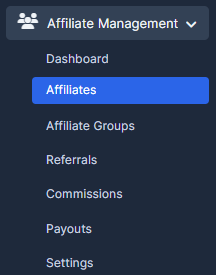
Go to Affiliate Management > Affiliates
This page lists all affiliates in your system with their main details and current status.
How to use it
-
-
Use search or filters to find an affiliate by name, email, or status.
-
Click on an affiliate row to open their profile.
-
Review their contact details, assigned group, and current balance.
-
Change status (Active, Paused, etc.) if you want to allow or stop them from promoting you.
-
To add a new affiliate, click the button to create a new record, fill in the required fields, choose a group, and save.
-
AFFILIATE GROUPS
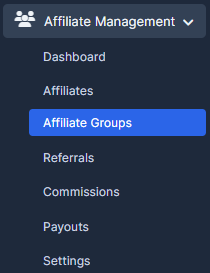
Go to Affiliate Management > Affiliate Groups
Affiliate Groups let you organize affiliates into simple categories with different conditions if needed.
How to use it
-
Review existing groups such as “Standard”, “VIP”, “Partners”, or your own custom names.
-
Click the button to create a new group, then add a clear name and description (for example “VIP affiliates with higher commission”).
-
Save the group so it becomes available in the Affiliates page.
-
To edit a group, click on it, change the name or description, and save.
-
To assign an affiliate to a group, open the affiliate profile on the Affiliates page and select the desired group, then save.
REFERRALS
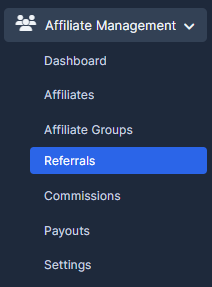
Go to Affiliate Management > Referrals
Referrals show each client, signup, or order that came through an affiliate.
How to use it
-
Use filters (affiliate, date, status) to see the referrals you need.
-
For each referral, check who sent it, when it happened, and what action it represents.
-
Open a referral to see more details if something looks unusual.
-
Change the referral status if available (for example, Pending, Approved, Rejected).
-
Approve valid referrals so they can generate commissions; reject test or invalid referrals.
COMMISSIONS
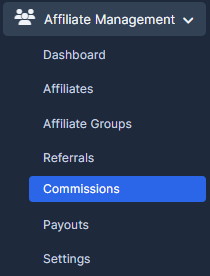
Go to Affiliate Management > Commissions
Commissions are the rewards earned by affiliates from approved referrals.
How to use it
-
Review the list of commissions with affiliate name, related referral, amount, and status.
-
Filter by affiliate, date, or status to focus on specific records.
-
Open a commission if you need to double‑check the details or add a note.
-
If allowed, adjust the amount when there was a manual agreement or correction.
-
Approve all correct commissions so they become available for payouts.
-
Leave incorrect or fraudulent commissions as rejected so they are not paid.
PAYOUTS
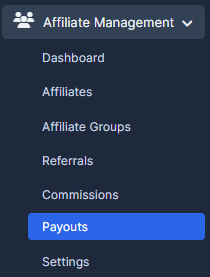
Go to Affiliate Management > Payouts
Payouts help you keep track of what you have paid (or will pay) to each affiliate.
How to use it
-
Filter the list to see affiliates with unpaid or ready‑to‑pay amounts.
-
Check each record for the amount, period, and status.
-
Select the payouts you plan to process now.
-
Send payments using your usual method outside the system (for example bank transfer or e‑wallet).
-
After sending the payment, mark the payout as Paid or Completed and, if possible, add a note with transaction details.
-
Confirm that the affiliate’s unpaid balance has decreased or is now zero.
SETTINGS
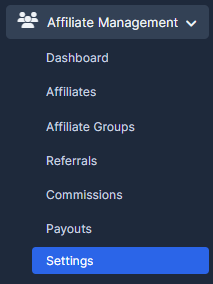
Go to Affiliate Management > Settings
Settings define the main rules for how your affiliate program works across all tabs.
How to use it
-
Set the default commission type (percentage or fixed amount) and the standard value.
-
Choose the minimum payout amount so you do not process very small payments.
-
Set a waiting period for commissions to become payable (to protect against refunds or chargebacks).
-
Configure available payout methods and any required fields.
-
Review all options carefully, then save changes so new referrals and commissions follow these rules.
TIPS AND TRICKS
WORKFLOW
-
Start in Dashboard to see overall performance and trends.
-
Check Referrals to approve or reject new entries from affiliates.
-
Review Commissions to confirm amounts before they are included in payouts.
-
Use Affiliates and Affiliate Groups to keep your partner list clean and organized.
-
On a regular schedule (for example weekly or monthly), go to Payouts and complete payments for affiliates who reached the minimum amount.
FILTERS AND SEARCH
-
On list pages (Affiliates, Referrals, Commissions, Payouts), use filters to narrow down the information you see.
-
Use the search box to quickly find a specific affiliate, client, or record.
-
Adjust the number of items per page if you want to see more or fewer records at once.
The acticles you may find useful for you: How to Check the API Logs?
How to Create a New Affiliate?
How To Find a Report of The Affiliate Which Sent the Most of the Leads?