MANAGER PLATFORM USER GUIDE
STEP-BY-STEP NAVIGATION
IN THE CRM
HOW TO ACCESS THE MANAGER PLATFORM
How to Give the Access to the platform to the Staff Member?
How to Check if the Position was Closed?
How To Do Import The Trading History
How Agent and Client Notifications Work?
Go to the left sidebar menu, press on "Manager Platform".
MANAGING USERS
Go to the left sidebar menu, press on "Manager Platform".
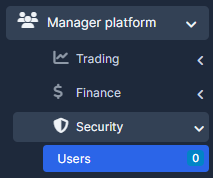
How to use it
1. View all users in the list
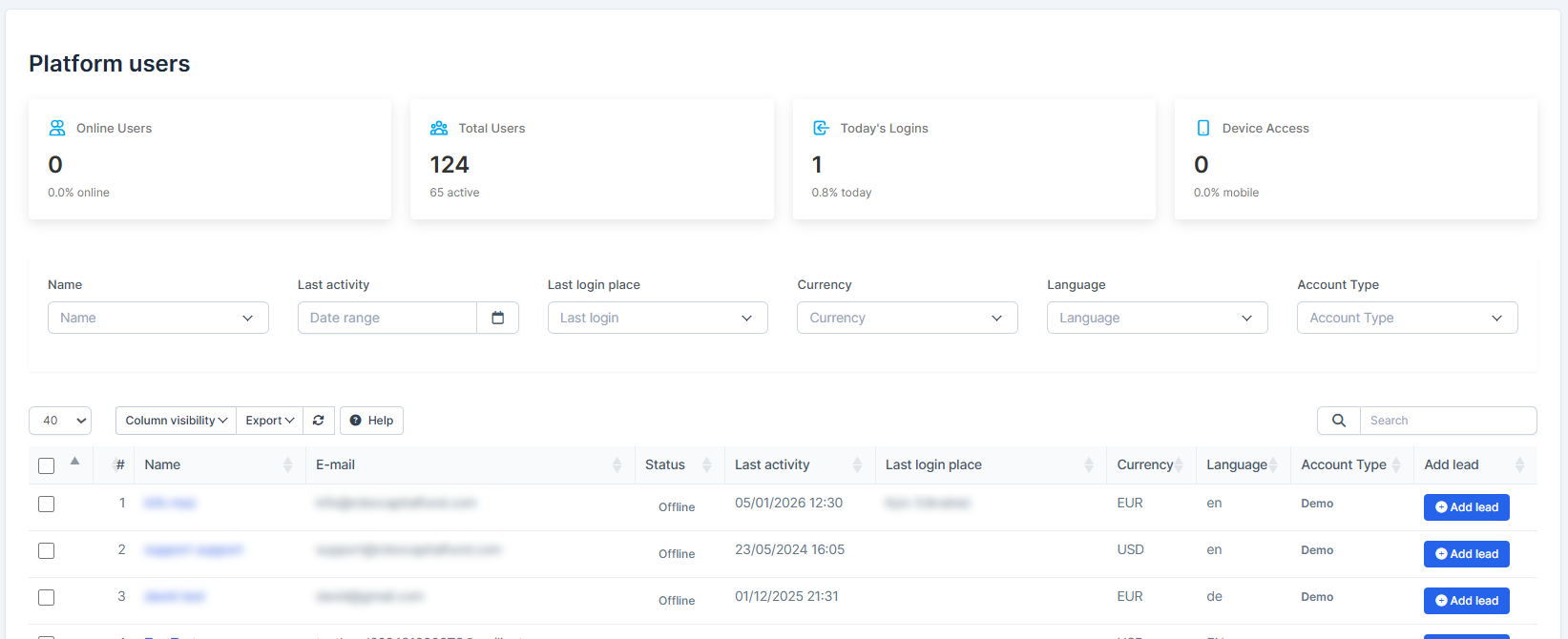
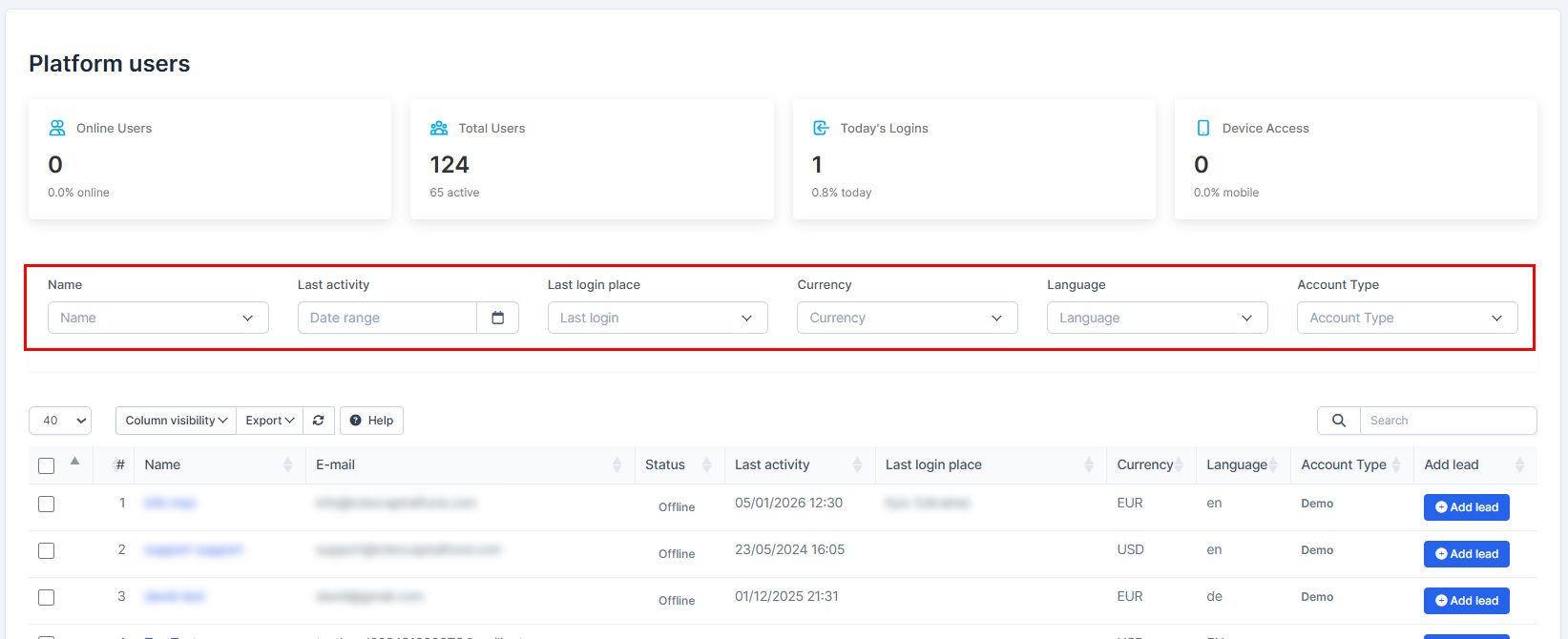
2. To filter users
> Look for dropdown filters (Name, Date, Currency, Language, Account Type) > Select your filter > View results
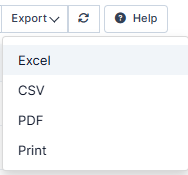
3. To export user data
> Click the "Export" button > Choose your format
4. To see a user's profile
> Click on their name in the table

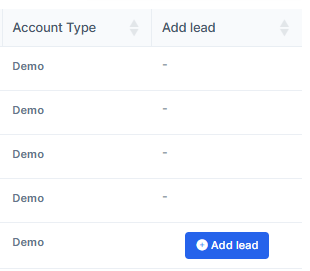
5. To add leads to a user
> Find the user in the table > Click "Add lead" button in the rightmost column
MANAGING MARGIN POSITIONS
How To Enable / Disable Margin
How to Enable/Disable Leverage?
How to Keep Default Margin Balance Enabled?
Edit How To Enable / Disable Margin
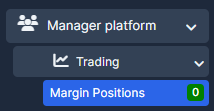
Go to the left sidebar menu, press on "Manager Platform"> "Margin Positions".
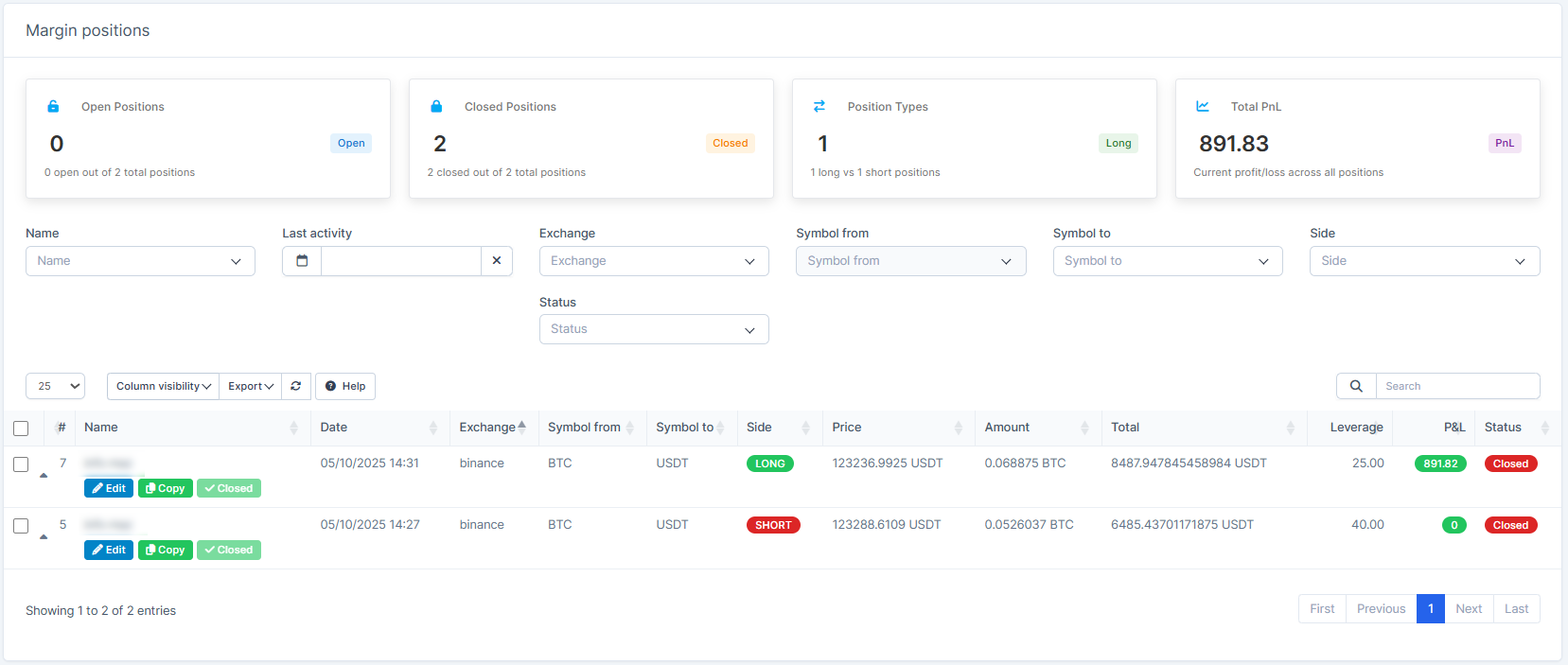
You're able to view here
- Position statistics (Open, Closed, Long vs Short)
- Total profit/loss overview
- Detailed position table below
How to use it
1. Monitor your statistics at the top of the page
2. To find specific positions
> Use the filter dropdowns (Name, Exchange, Symbol) > Select filters > View filtered results
3. To see more details about a position
> Look at the detailed table below > View all position information including leverage and P&L

4. To edit/copy a position
> Find the position in the table > Click the "Edit"/"Copy" button

MANAGING CFD POSITIONS
How to Find Trading Hour Settings?
How to Enable CFD Modification for the Agent?
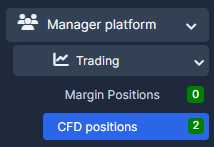
Go to the left sidebar menu, press on "Manager Platform"> "CFD Positions".
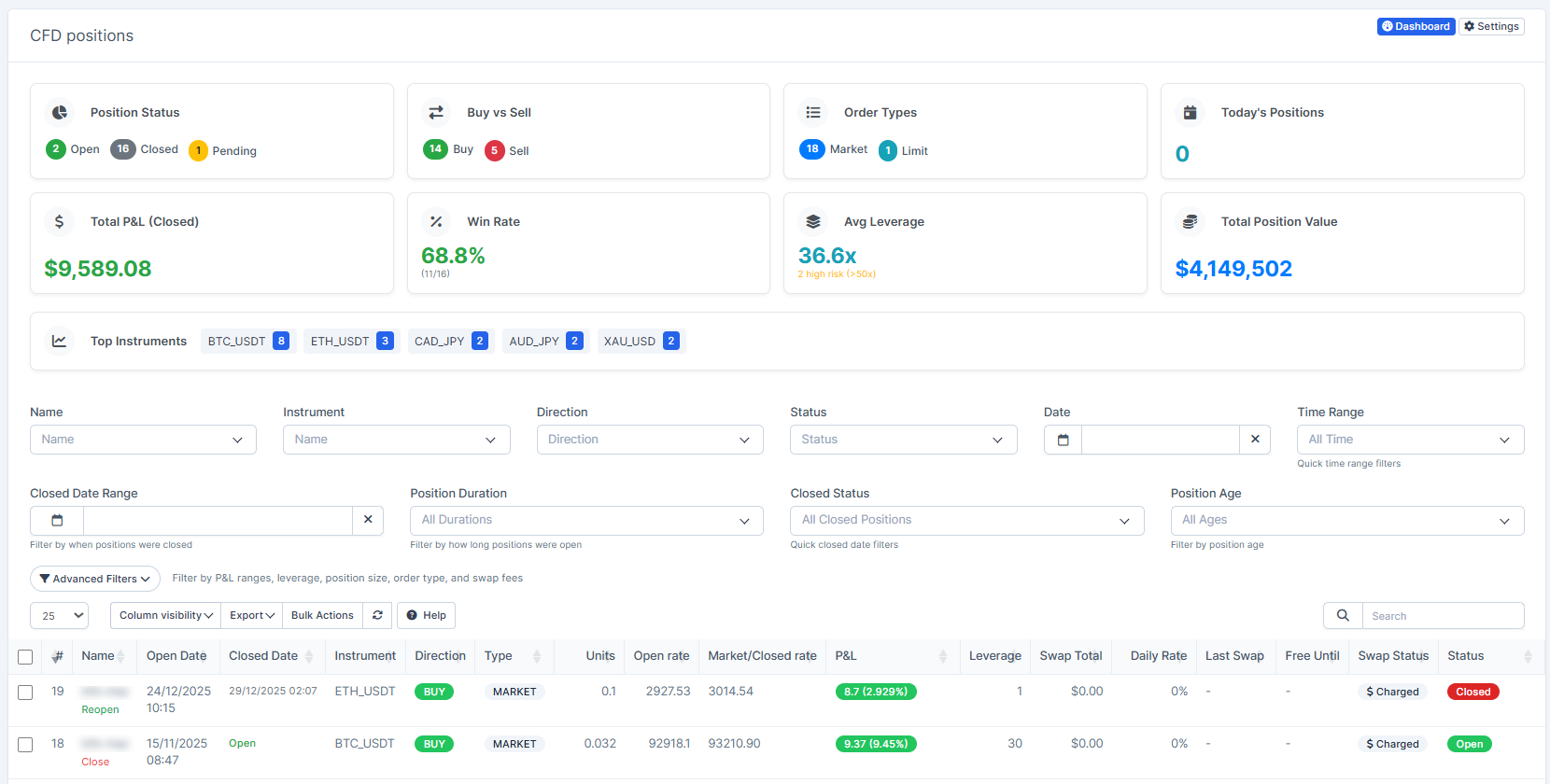
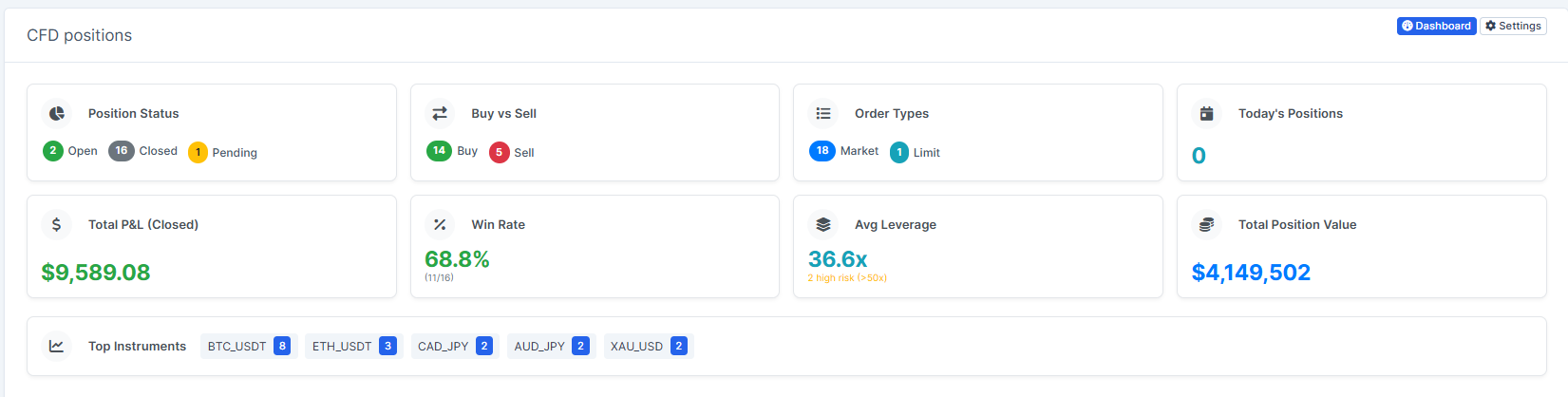
You're able to view here
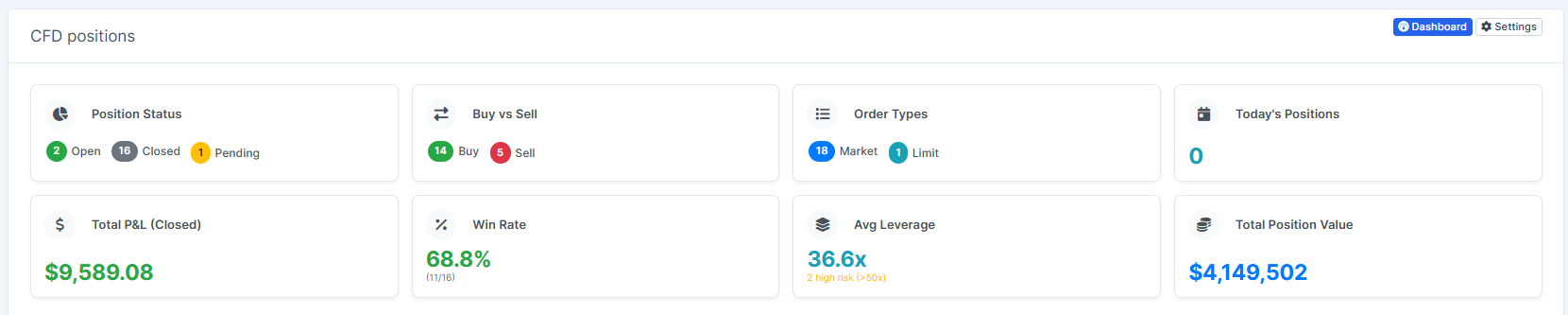
- Position status cards (Open, Closed, Pending)
- Buy vs Sell breakdown
- Win rate and average leverage
- Detailed position table
How to use it
1. Check the statistics cards at the top to see overall position health
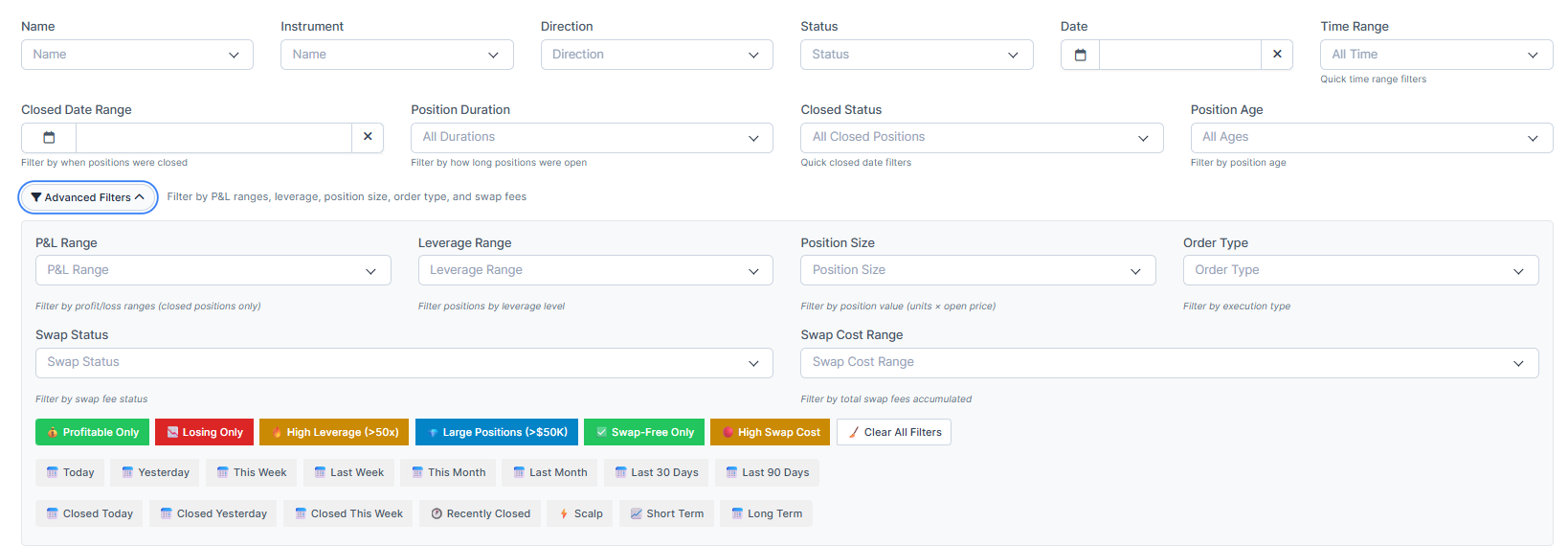
2. To view specific positions
> Scroll down to the detailed table > Look for filter options > Select filters (Name, Status, Direction, Date Range) > View results
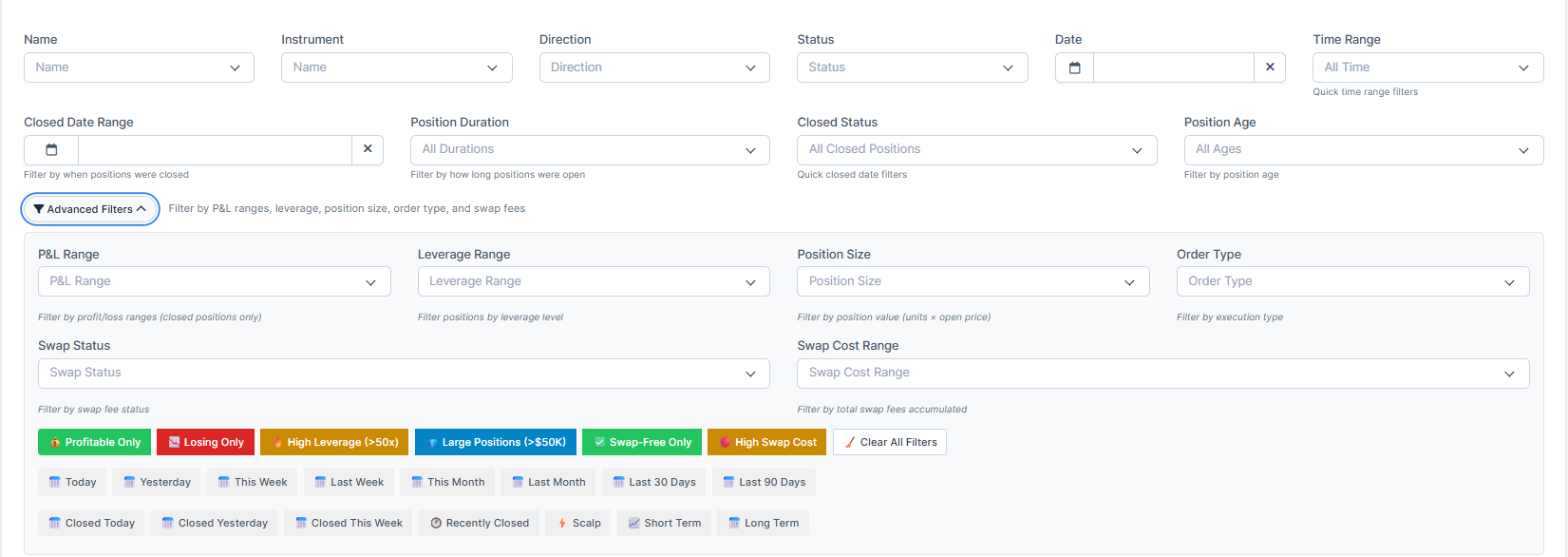
3. To see top trading instruments
> Look for "Top Instruments" section > View most traded pairs

CREATING AND MANAGING ORDERS
How to Check if the Position was Closed?
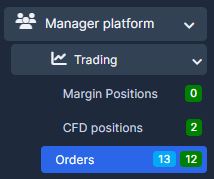
Go to the left sidebar menu, press on "Manager Platform"> "Orders".
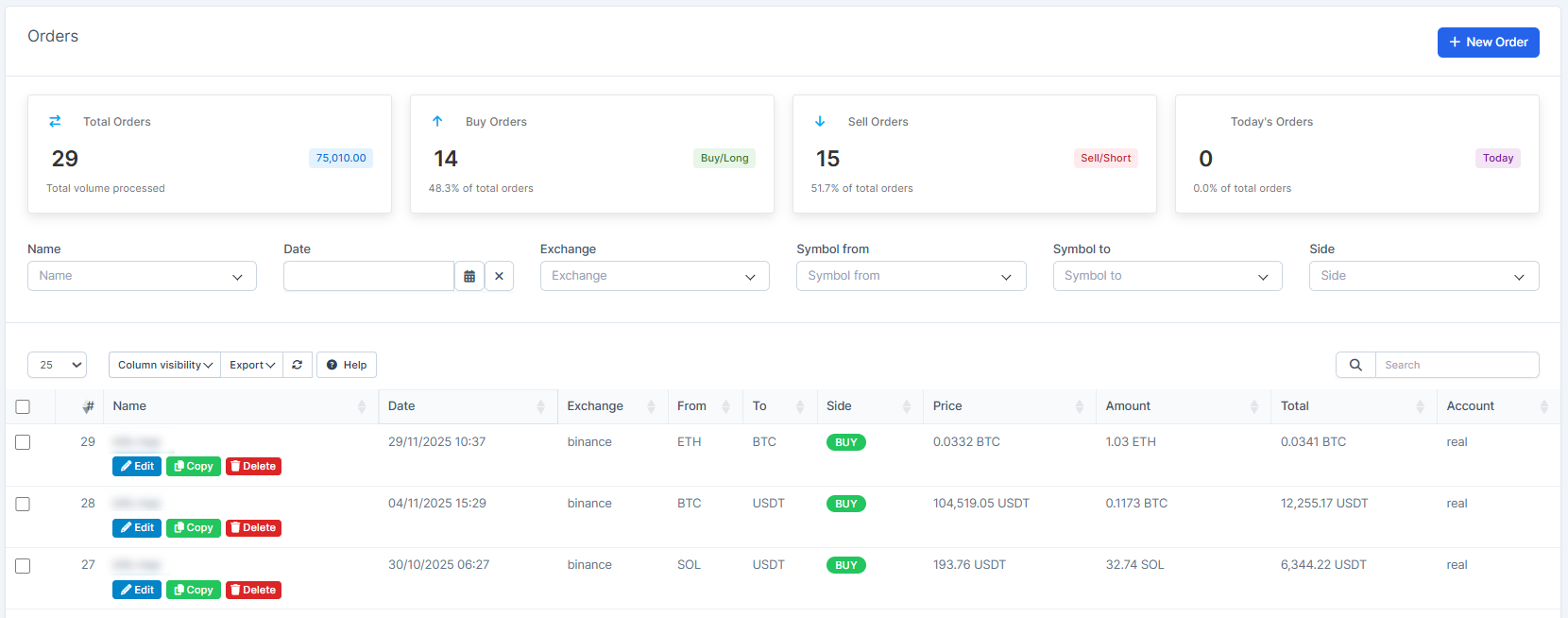
You're able to view here
- Order statistics (Total, Buy, Sell, Today's)
- Complete order history table
How to use it
1. Check statistics at the top for order overview

2. To create a new order
> Click the blue "+ New Order" button in the top right

3. To view existing orders
> Scroll down to the order table

4. To find a specific order
> Use filters (Name, Date, Exchange, Symbols) > Select your criteria > View results

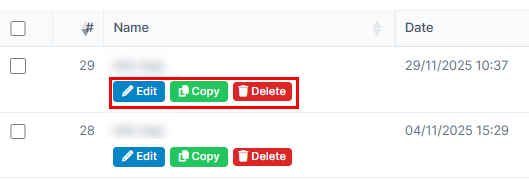
5. To edit/copy/delete an order
> Find it in the table > Click "Edit"/"Copy"/"Delete"button
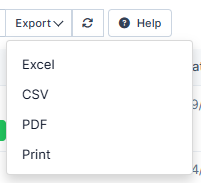
8. To export all orders
> Click "Export" button
MANAGING WITHDRAWALS
How to Change the Withdrawal Fee?
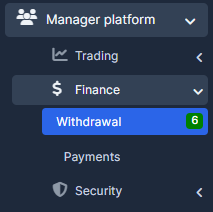
Go to the left sidebar menu, press on "Manager Platform"> "Withdrawal".
You're able to view here
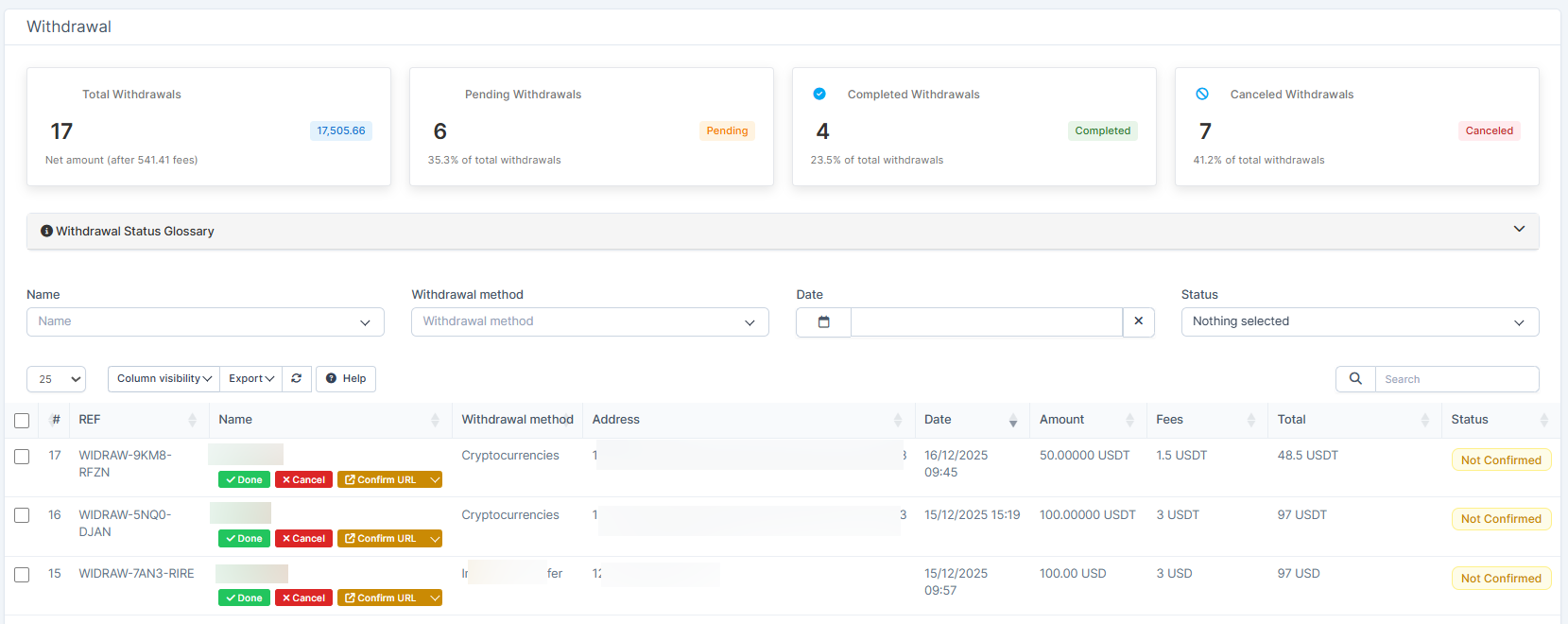
- Withdrawal statistics (Total, Pending, Completed, Cancelled)
- Withdrawal status legend
- Detailed withdrawal requests table
How to use it
1. Check the status cards at the top to see withdrawal overview

2. To see what each status means
> Look for "Withdrawal Status Glossary" > Read the explanations

3. To view all withdrawals
> Scroll down to the table

4. To filter withdrawals
> Use the dropdown filters (Name, Withdrawal method, Status) > Select your filters > View results

5. To process a withdrawal
> Find it in the table > Look for action buttons (Confirm, Cancel, Done) > Click the appropriate button

MANAGING KYC VERIFICATION
How to Set up the KYC Statuses?
How To Find KYC Identification In The CRM?
How To Enable / Disable ID Verification
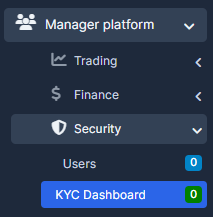
Go to the left sidebar menu, press on "Manager Platform"> "KYC Dashboard".
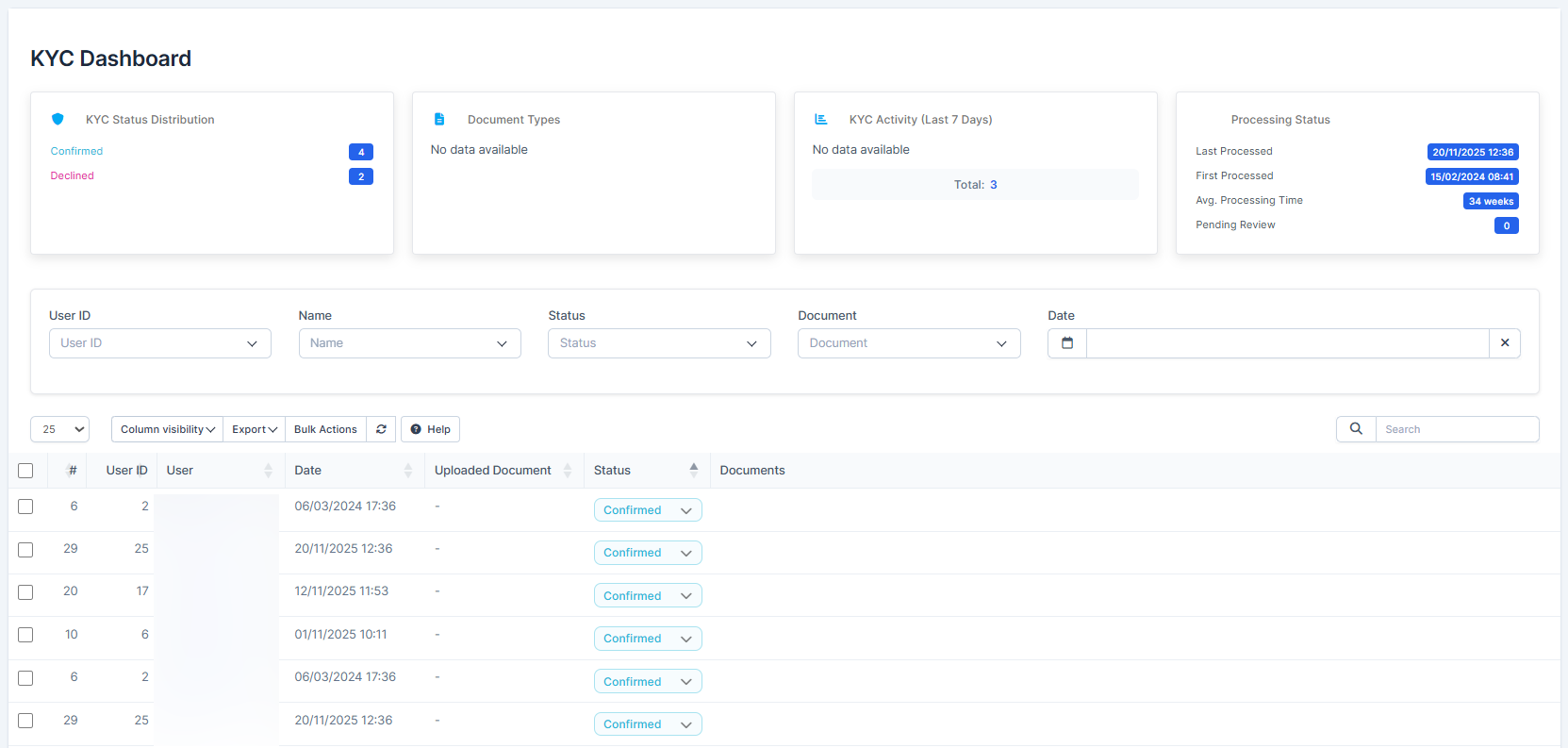
You're able to view here
- KYC status overview cards
- Document types and processing information
- KYC verification requests table
How to use it
1. To see processing statistics
> Look for "Processing Status" card > Check "Last Processed" and "Avg. Processing Time"

2. To review verification requests
> Scroll down to the table
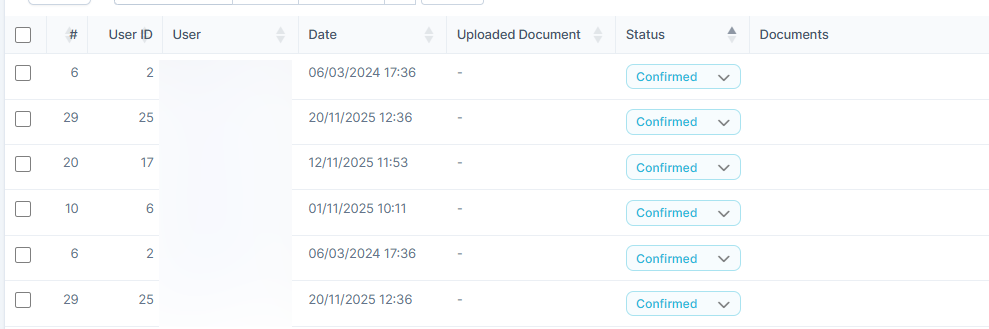
3. To filter by status
> Use dropdown filters (User ID, Name, Status, Document, Date) > Select criteria > View results

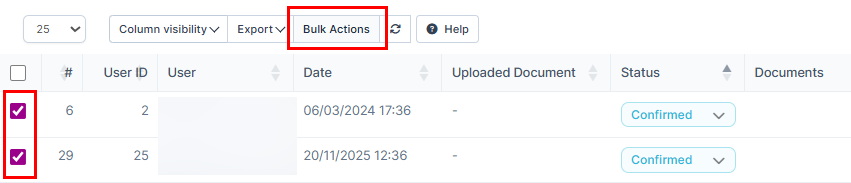
4. To process verifications in bulk
> Click "Bulk Actions" button > Select multiple users > Process together
MONITORING NOTIFICATIONS
How Agent and Client Notifications Work?
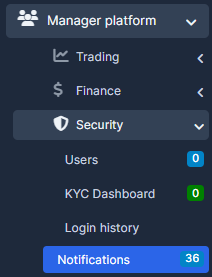
Go to the left sidebar menu, press on "Manager Platform"> "Notifications".
You're able to view here
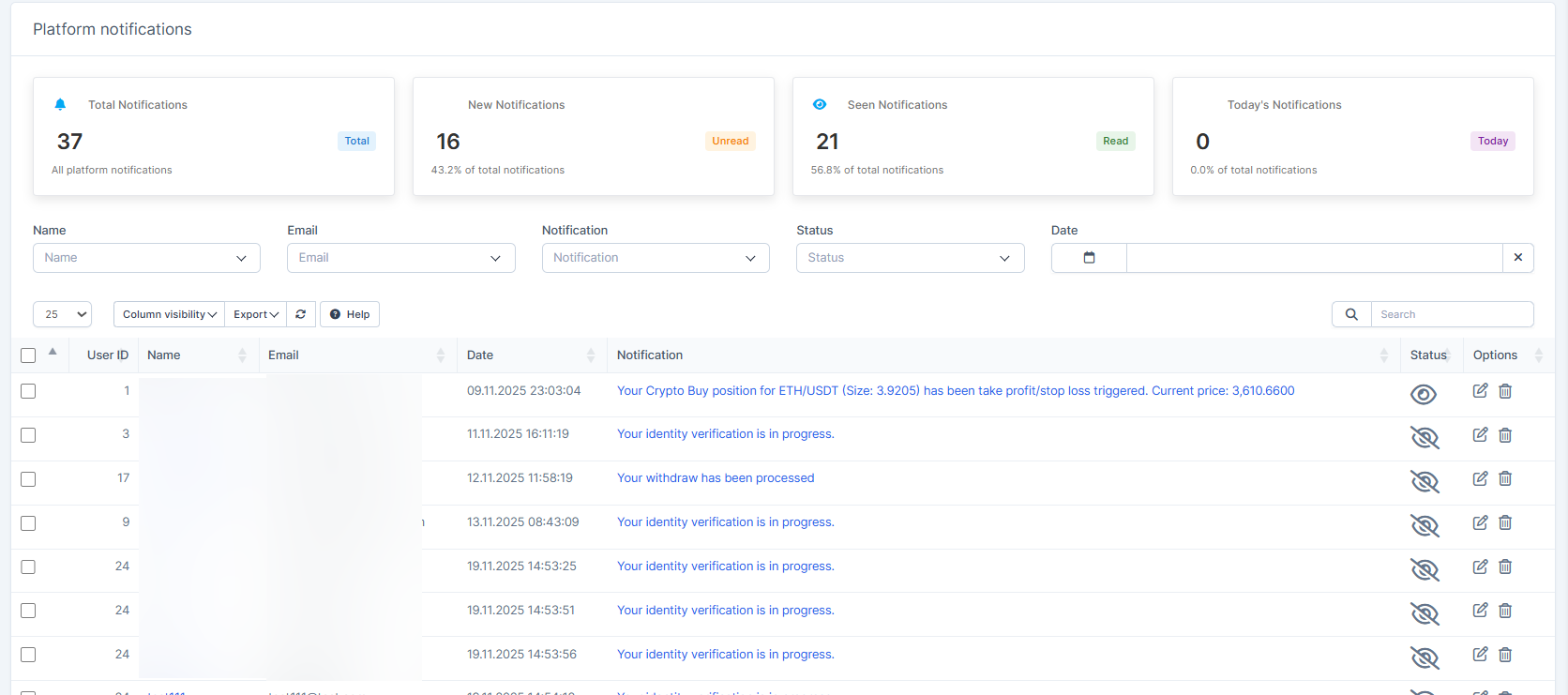
- Notification statistics (Total, New, Seen, Today's)
- Complete notification history table
How to use it
1. Check statistics cards at the top for notification overview
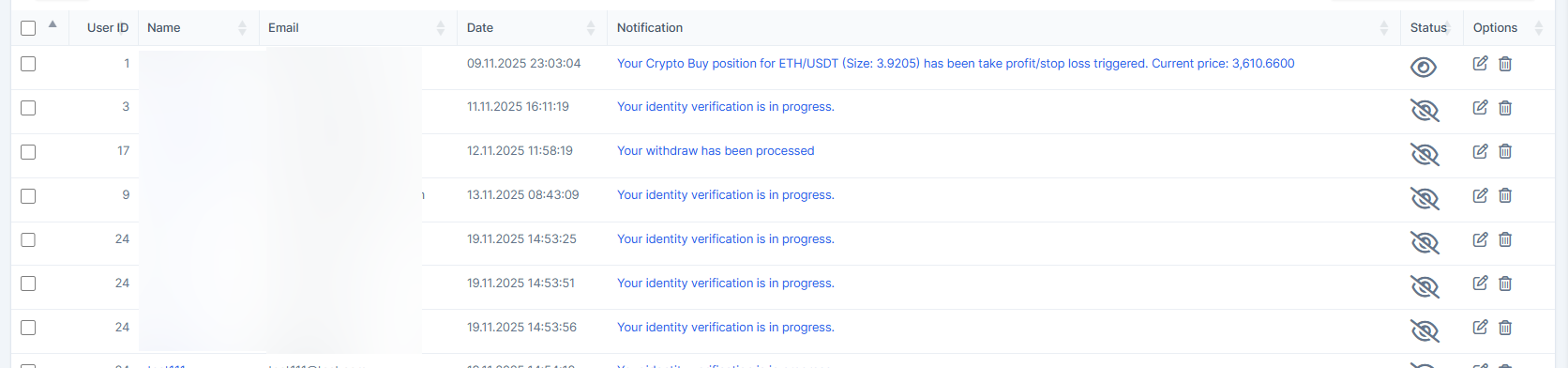
2. To view all notifications
> Scroll down to the table
3. To filter notifications
> Use dropdown filters (Name, Email, Notification type, Status) > Select filters > View results

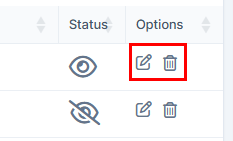
4. To delete/edit notifications
> Find the notification > Click delete/edit icon
7. To export notification records
> Click "Export" button
CHECKING LOGIN HISTORY
How to Check Client's Autologin History?
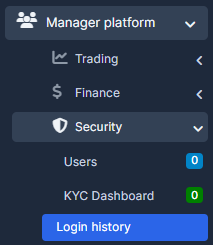
Go to the left sidebar menu, press on "Manager Platform"> "Login History".
You're able to view here
- Login statistics by country
- Device type breakdown (Windows, Mac, Mobile)
- Daily login trends
- Complete login history table
How to use it
1. Review the statistics cards at the top to understand login patterns
2. To see geographic distribution
> Look for "Logins by Country", "Device Types" and "Daily Logins" cards

3. To find specific logins
> Use filters (User ID, Name, Date) > Select criteria > View results

6. To identify suspicious logins
> Look for unusual IP addresses, countries, or devices in the table

MANAGING BINARY POSITIONS
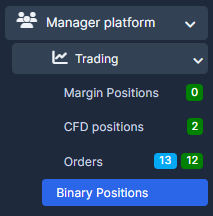
Go to the left sidebar menu, press on "Manager Platform"> "Binary Positions".
You're able to view here
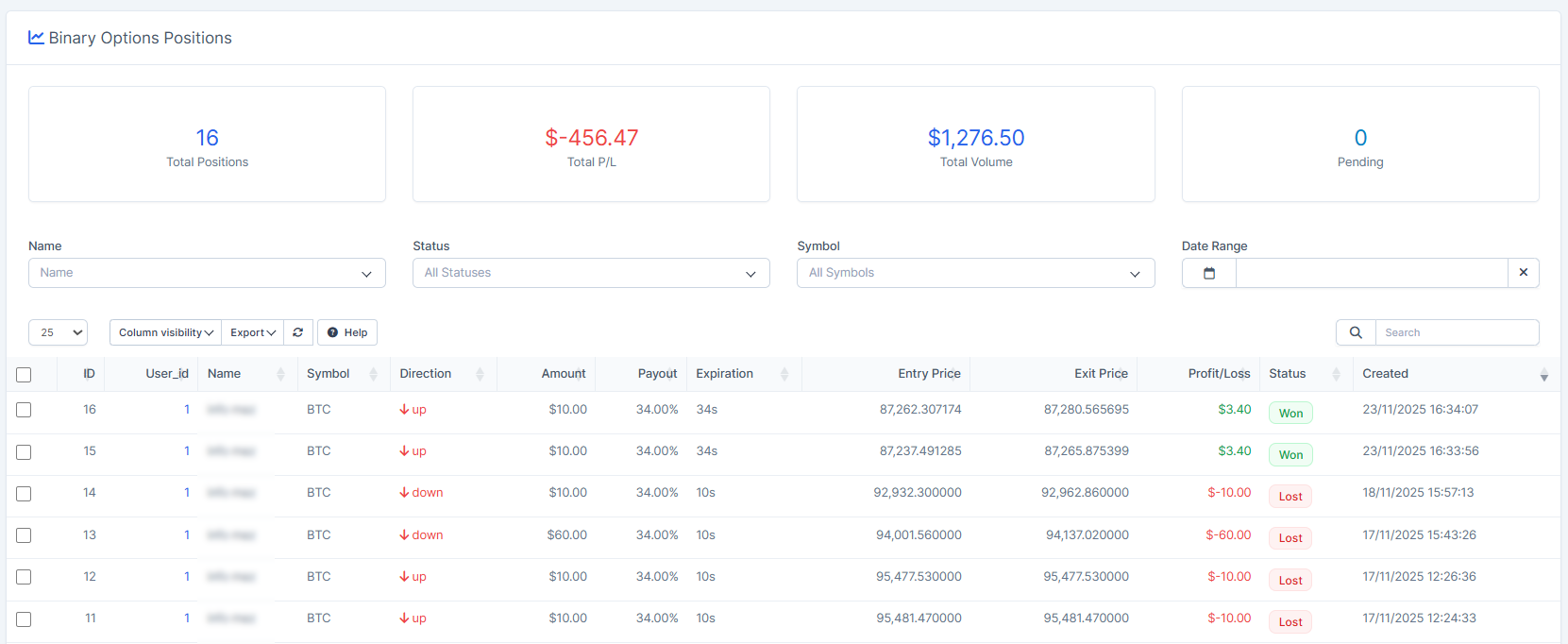
- Position statistics (Total, Profit/Loss, Volume, Pending)
- Binary options positions table
How to use it
1. Check statistics at the top for overview

2. To view all positions and to see the position details, to monitor performance, to track wins/losses
> Scroll down to the table > Look at the table columns (Direction, Amount, Price, Payout, Status)> Check the "Profit/Loss" column for each trade>Look for "Status" column (Won/Lost/Pending)

3. To find specific positions
> Use filters (Name, Status, Symbol, Date Range) > Select criteria > View results

PROCESSING PAYMENTS
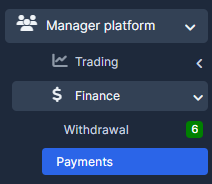
Go to the left sidebar menu, press on "Manager Platform"> "Payments".
You're able to view here
- Payment statistics (Total, Not Paid, Paid, Today's)
- Internal transfers and special transactions section
- Complete payment table
How to use it
1. Check status cards at the top for payment overview
2. Want to see different transaction types? > Look for "Internal Transfers & Other Transactions" section > See breakdowns for:
- Internal Transfers (between accounts)
- Staking Transfers
- Bonuses & Rewards
3. Want to view all payments? > Scroll down to the table
4. Want to filter payments? > Use dropdown filters (Name, Status, Account, Gateway, Date) > Select criteria > View results
5. Want to process multiple payments? > Click "Bulk Actions" > Select payments > Process together
6. Want to check payment details? > Look at table columns (Amount, Fees, Wallet, Status, Gateway)
STAKING DASHBOARD
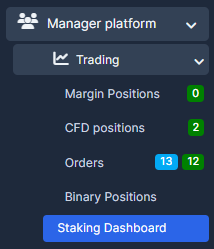
Go to the left sidebar menu, press on "Manager Platform"> "Staking Dashboard".
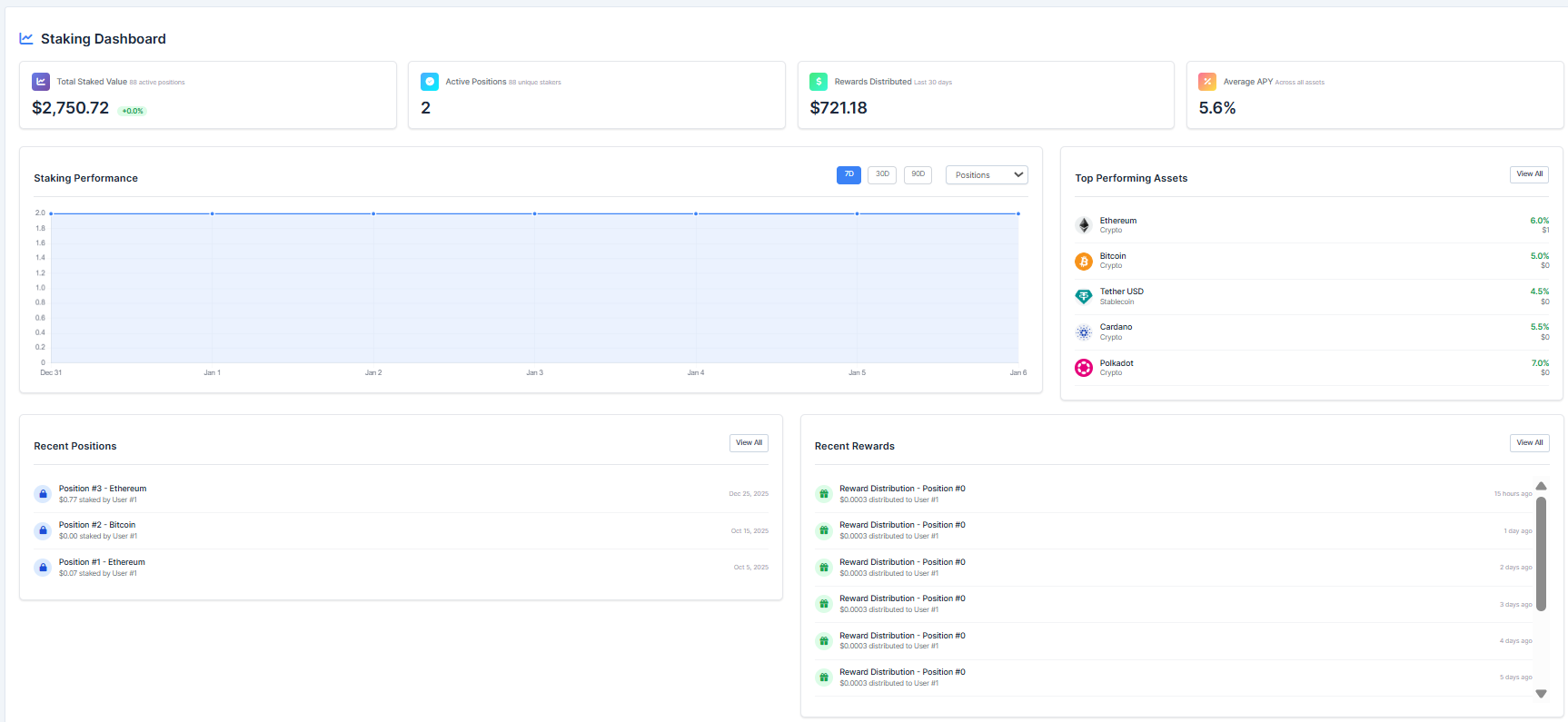
You're able to view here
- Total staked value with trend
- Active positions count
- Rewards distributed (last 30 days)
- Average APY (Annual Percentage Yield)
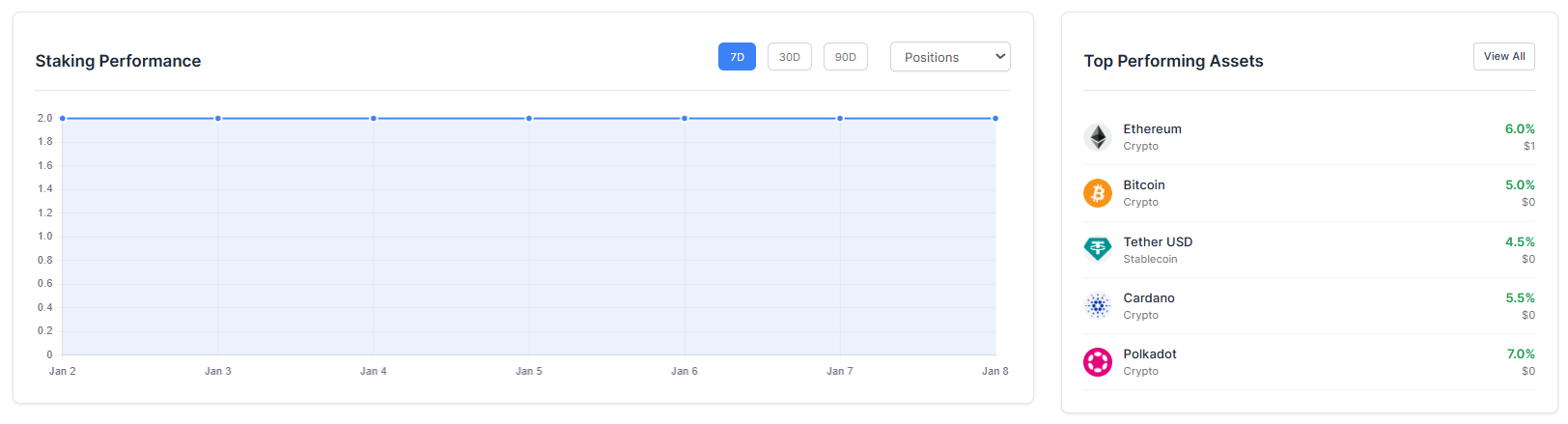
- Staking performance chart
- Top performing assets
How to use it
1. Get staking overview from the cards at the top

2. To see performance trends and top accets
> Look for the "Staking Performance" chart and "Top Performing Assets" > Use the time period buttons (7D, 30D, 90D) > Select your timeframe; See which assets are earning the best returns and to view all the assets press on the "View All" button
5. To see detailed position info
> Click on "Staking Positions" from the menu for more details
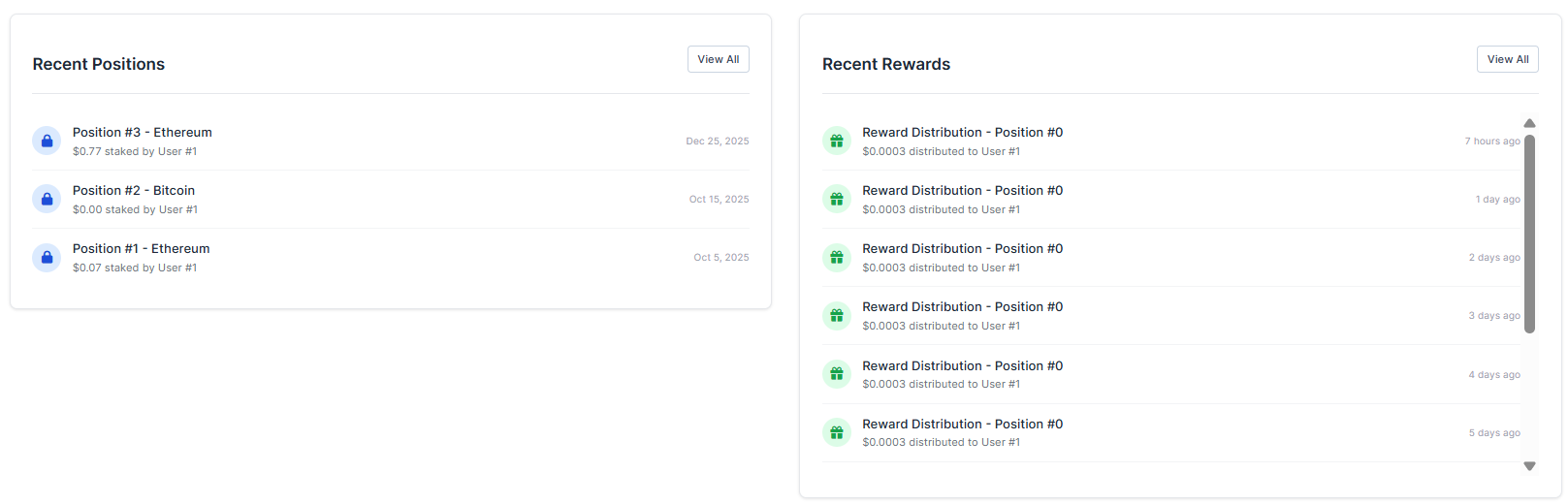
6. To manage positions, assets and settings
> Click on "Quick Actions" from the menu for more details

MANAGING STAKING POSITIONS
Go to the left sidebar menu, press on "Manager Platform"> "Staking Positions".
You're able to view here
- Position statistics (Total, Active, Completed)
- Staking period and completion rate info
- Detailed positions table
How to use it
1. Check statistics at the top to see staking overview
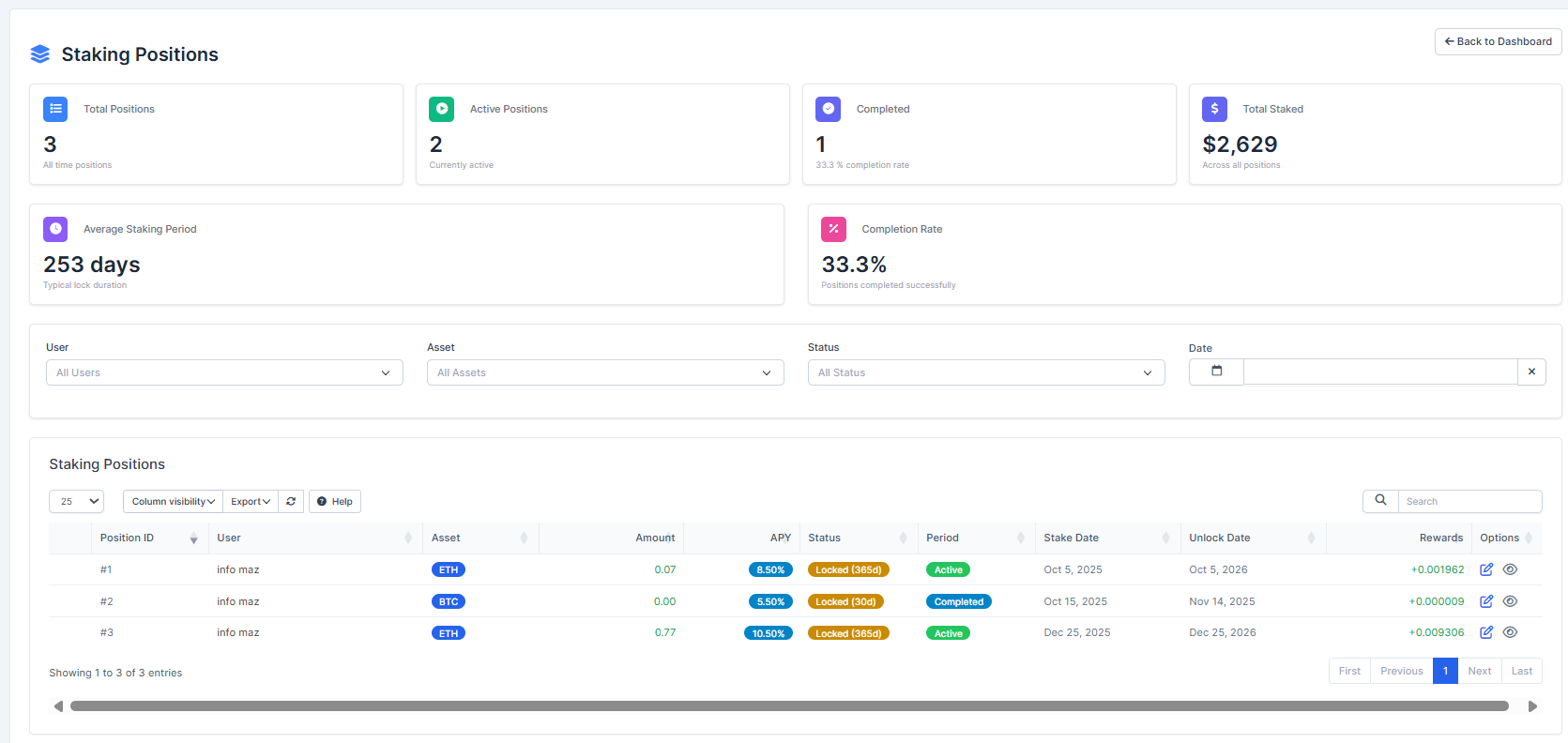
2. To see average staking period
> Look for "Average Staking Period" card (shows typical lock duration)

3. To see success rate
> Look for "Completion Rate" percentage

4. To view all positions
> Scroll down to the detailed table

5. To filter positions
> Use dropdown filters (User, Asset, Status) > Set date range > View results

7. To manage a position
> Click the "Options" menu next to the position

MONITORING STAKING REWARDS
Go to the left sidebar menu, press on "Manager Platform"> "Staking Rewards".
You're able to view here
- Reward statistics (Total, Pending, Distributed, Failed)
- Total distributed amount
- Rewards distribution table
How to use it
1. Check status cards at the top for rewards overview, to see pending, successfully distributed, failed distributions
> Look at "Pending", "Distributed", "Failed" card count

5. To view all rewards
> Scroll down to the table
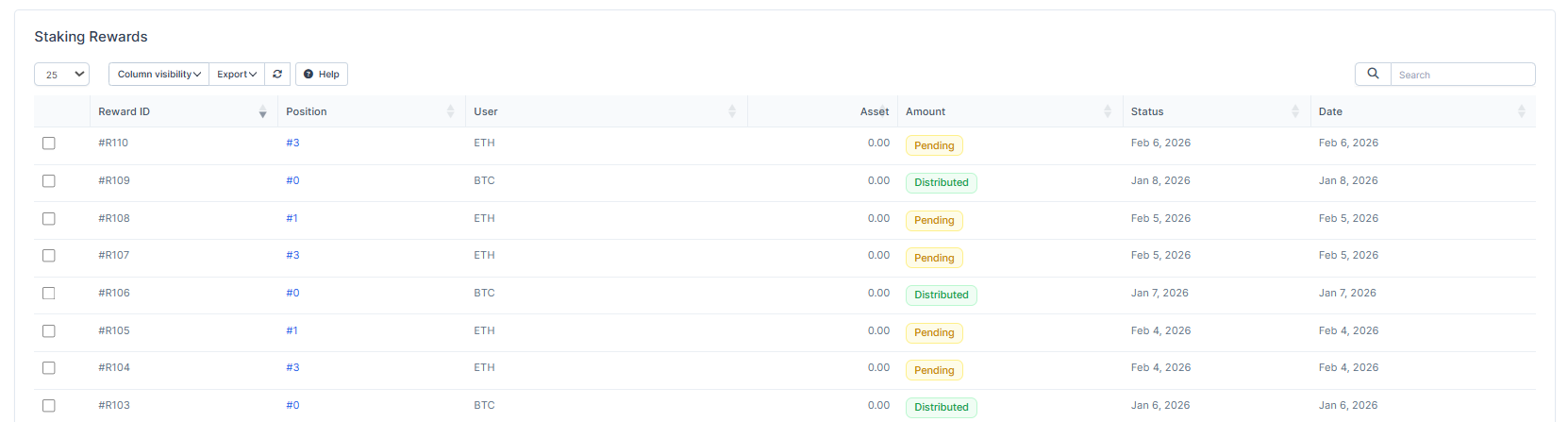
6. To filter rewards
> Use dropdown filters:
- Filter by Status (Pending, Distributed, Failed)
- Filter by Asset being rewarded
- Filter by User receiving reward
- Set Date Range
- Set Min/Max Amount range

7. To export reward records
> Click "Export" button
TIPS AND TRICKS
FILTERING DATA
Go to any list page > Look for filter dropdowns > Click on the field you want to filter > Select your criteria > Results update automatically
EXPORTING DATA
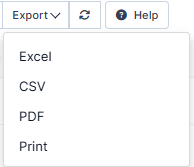
Go to any list page > Click "Export" button > Choose your format > Download the file
BULK ACTIONS
Go to pages with bulk action support (KYC, Payments, etc.) > Select multiple checkboxes > Click "Bulk Actions" > Choose action > Confirm
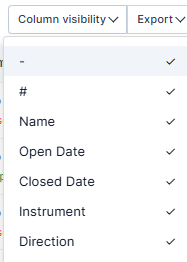
COLUMN VISIBILITY
Go to any list page > Click "Column visibility" button > Check/uncheck columns you want to see > Changes apply immediately
SEARCH
Go to any list page > Look for search box in top right > Type what you're looking for > Results update in real-time
PAGINATION
Go to any list page > Scroll to the bottom > Look for page navigation > Click page numbers or "Next"/"Previous" to browse pages

CHANGING ITEMS PER PAGE
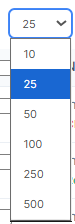
Go to any list page > Look for dropdown showing "25" items > Click it > Select "10", "50", "100", "250", or "500" to change how many items appear